 by
by Knowing how to copy Facebook video link can be useful when you want to share a video with friends, save its URL for later, or use the link with a compatible online tool.
Facebook provides sharing options that can make copying a video link straightforward. However, the exact steps may look slightly different depending on whether you use the Facebook app, a mobile browser, or a computer.
In this guide, we’ll explain the process for Android phones, iPhones, and PCs.
What Is a Facebook Video Link?
A Facebook video link is the web address, or URL, that points to a particular video or post on Facebook.
Instead of sending an entire video file, you can share its link. When another person opens the link, Facebook can take them to the associated content, subject to the post’s privacy and availability.
For example, a Facebook URL may begin with the Facebook domain followed by additional information identifying the post or video.
How to Copy Facebook Video Link on Android
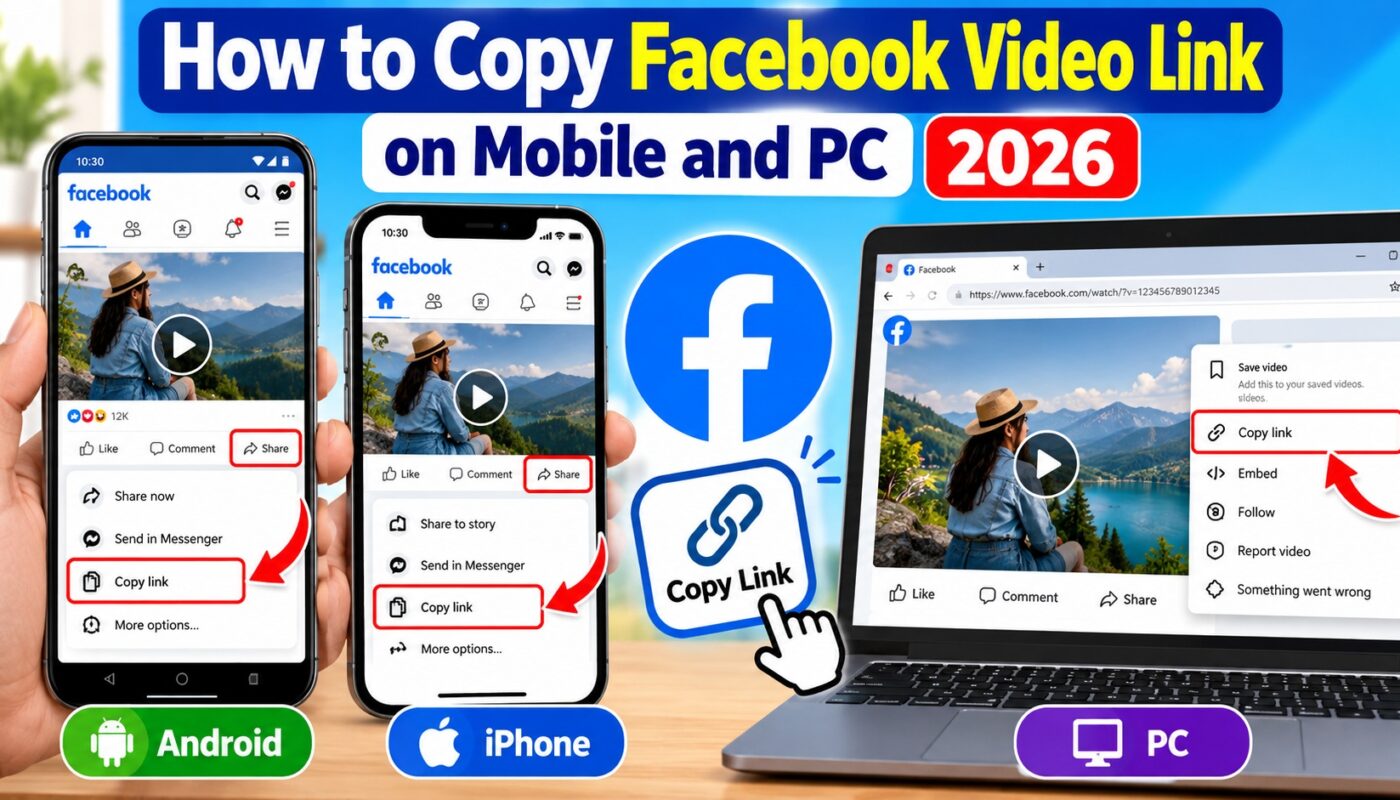
If you use the Facebook app on an Android phone, try these steps:
- Open the Facebook app.
- Find the video you want to share.
- Look for the Share button associated with the post.
- Tap Share.
- Look for Copy link or a similar link-copying option.
- Tap it to copy the URL.
The link should now be available on your phone’s clipboard. You can paste it into a browser, message, notes app, or another compatible service.
Facebook may change the location or wording of menu options over time, so the exact interface can vary by app version.
How to Copy Facebook Video Link on iPhone
The process on an iPhone is similar.
Open Facebook and locate the video you need. Tap the sharing option associated with the post and look for Copy link.
After copying it, open the app where you want to use the URL. Press and hold inside the text field and select Paste.
If you don’t see the copy option immediately, check the additional sharing choices available for that post.
How to Copy Facebook Video Link on PC
Copying a Facebook video URL on a desktop or laptop is also simple.
First, open Facebook in your web browser and find the relevant video or post.
Depending on Facebook’s current interface, you can use the available sharing options to copy the link. In some situations, you may also be able to open the post or video and copy the appropriate URL from your browser’s address bar.
Before using the URL elsewhere, make sure you copied the link for the intended post or video.
How to Use the Copied Video Link
Once you have copied the URL, you can paste it wherever you need it.
For example, if you have permission to save a publicly accessible video, you can use our Facebook Video Downloader to process a supported Facebook video URL.
👉 Add an internal link on the words Facebook Video Downloader pointing to:
This internal link is important because it connects this supporting article with your main downloader page.
Why Can’t I Copy a Facebook Video Link?
Sometimes the expected link option may not appear.
There can be several reasons. The post’s privacy settings may limit access, the content may have been removed, or Facebook’s app interface may have changed.
First, check whether the video is still available. You can also update the Facebook app or try opening Facebook in your browser.
Avoid trying to bypass privacy or access restrictions. A link does not automatically give permission to access or download restricted content.
Public and Private Facebook Videos
There is an important difference between public and private content.
A public post may be accessible to a broad audience, while a private or restricted post may only be visible to selected users or groups.
Even when content is publicly viewable, copyright and other rights can still apply. Public availability does not automatically mean that a video can be freely copied, redistributed, or reused.
Is It Safe to Copy a Facebook Video URL?
Copying a normal Facebook URL is generally just copying text to your clipboard. However, be careful when pasting links into unfamiliar third-party websites.
Avoid websites that ask for unnecessary information such as your Facebook password.
Our downloader page should also continue to make clear that users should only process content they own or have permission to download.
Tips for Using Facebook Video Links
Before copying or sharing a link, confirm that it opens the video you intended. Also, remember that a link may stop working if the original post is deleted or its privacy settings change.
When using a video link with an online downloader, make sure the content is publicly accessible and that you have the necessary rights or permission to save it.
For official information about Facebook features and account-related issues, users can consult the Facebook Help Center.
Frequently Asked Questions
How do I copy a Facebook video link?
Open the Facebook video or its post, use the available Share option, and select Copy link when available.
Can I copy a Facebook video link on Android?
Yes. Facebook’s Android app provides sharing options for eligible posts, including a link-copying option where available.
Can I copy a Facebook video URL on a computer?
Yes. You can use Facebook’s sharing options, and depending on how the content is opened, the relevant URL may also be available through your browser.
Why is my copied Facebook link not working?
The original post may have been removed, its privacy settings may have changed, or the URL may not have been copied correctly.
Can I download a video after copying its link?
For supported publicly accessible videos, a compatible downloader may be able to process the URL. Only download videos you own or have permission to save.
Conclusion
Learning how to copy Facebook video link makes it easier to share a video URL or use it with compatible online tools.
Whether you use Android, iPhone, or PC, the basic process is similar: locate the video, open the sharing options, and copy the available link.
Once published, this article should internally link to your main Facebook Video Downloader page. That creates a more useful connection between the informational guide and the tool page.