 by
by Is your Facebook video not downloading even after you copy the video link correctly? This can happen for several reasons. The video may have privacy restrictions, the link may be incorrect, your internet connection may be unstable, or the downloading service may temporarily have trouble processing the video.
Fortunately, many common problems are easy to check.
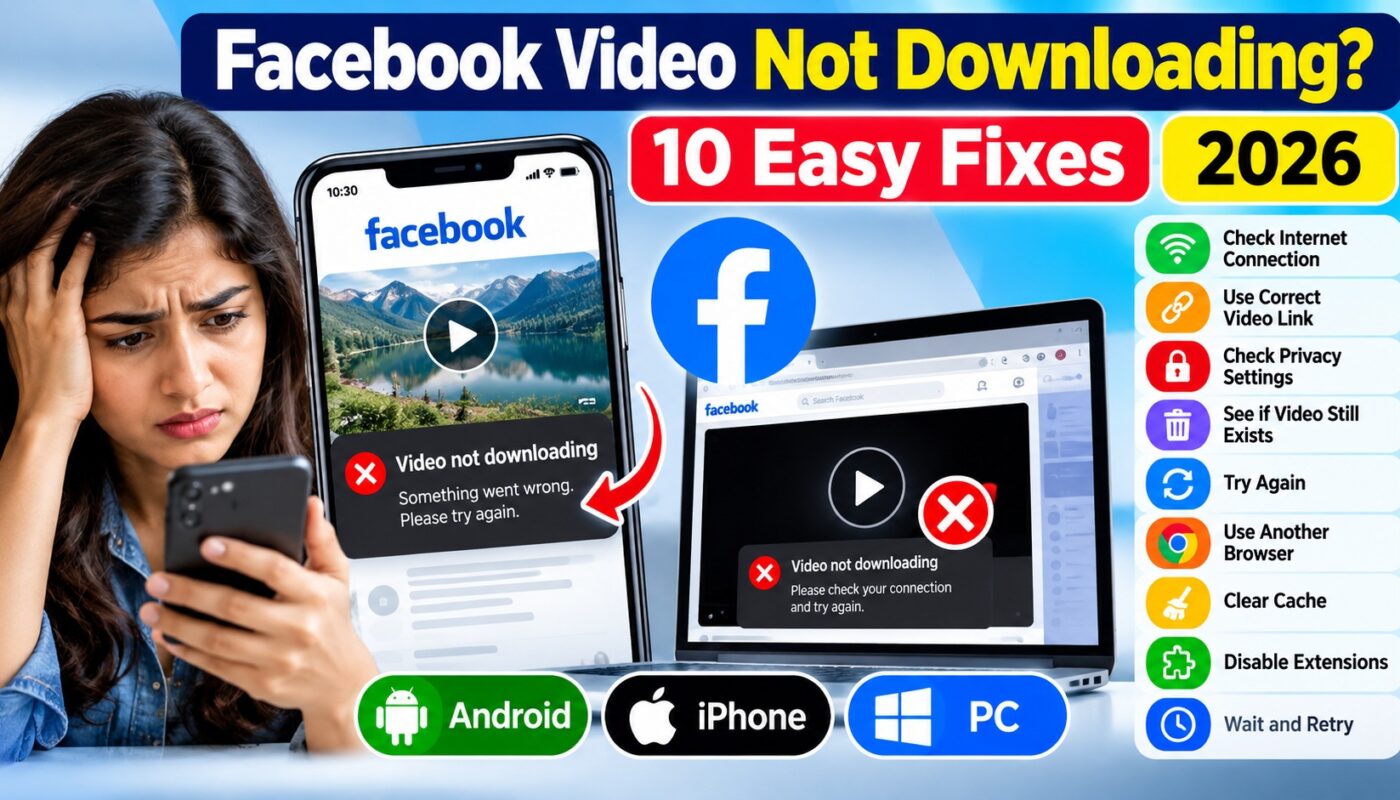
In this guide, we’ll look at 10 practical fixes you can try when a Facebook video isn’t downloading on Android, iPhone, or PC.
Why Is My Facebook Video Not Downloading?
Before trying different solutions, it helps to understand why the problem occurs.
A video may fail to process because of its availability or privacy settings. Sometimes, the Facebook URL itself is incomplete. Browser problems, temporary server issues, and internet connectivity can also interfere with the process.
The exact cause can therefore vary from one video to another.
Let’s look at the most useful checks.
1. Check Your Internet Connection
Start with the simplest possibility: your internet connection.
A weak or unstable connection can prevent a video page or downloader from loading correctly.
Try opening another website or playing another online video. If other pages are also slow, switch between Wi-Fi and mobile data if available.
After the connection becomes stable, try again.
2. Make Sure You Copied the Correct Facebook Video Link
An incorrect or incomplete URL is another common problem.
Open the Facebook post again and use its sharing options to copy the link.
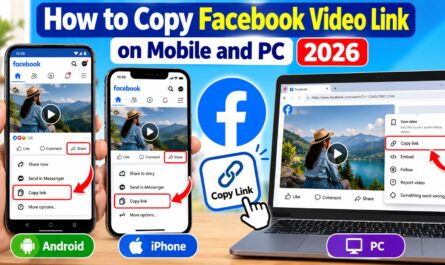
If you’re unsure how to do this, read our guide on How to Copy Facebook Video Link on Mobile and PC.
👉 Internal link #1: Link the text How to Copy Facebook Video Link on Mobile and PC to:
After copying the URL again, paste it into the downloader and retry.
3. Check Whether the Video Is Publicly Accessible
Privacy settings matter.
If a video is restricted to friends, a private group, selected users, or another limited audience, an external downloader may not be able to access it.
A downloader should not be used to bypass Facebook’s privacy or access restrictions.
If the video belongs to you, consider using Facebook’s own available options for accessing or managing your content.
4. Check Whether the Video Still Exists
Sometimes the problem isn’t your device at all.
The original uploader may have deleted the video. Facebook may also have removed the post, or its visibility may have changed.
Open the original Facebook link directly.
If Facebook itself cannot display the content, a downloader generally won’t be able to process that link either.
5. Try the Facebook Video Downloader Again
If the link is correct and the video is publicly accessible, try processing it again.
You can use our Facebook Video Downloader for supported publicly available Facebook videos.
👉 Internal link #2: Link Facebook Video Downloader to:
Paste the Facebook video URL into the box and follow the instructions displayed on the page.
Only download content you own or have permission to save.
6. Refresh the Downloader Page
Temporary page-loading problems can occur.
If the downloader appears stuck, refresh the webpage and paste the URL again.
On a computer, you can reload the browser tab. On a phone, use your browser’s refresh option.
However, avoid repeatedly clicking the download button while the first request is still processing.
7. Try Another Browser
If your Facebook video is not downloading in one browser, test another modern browser.
For example, if you’re using Chrome, you can try Edge, Firefox, or Safari where available.
Browser extensions, old cached files, privacy settings, or other browser-specific configurations can sometimes affect how a website works.
If the downloader works in another browser, the original browser may be the source of the problem.
8. Clear Browser Cache
Browsers store temporary files to make websites load faster. Occasionally, outdated cached resources can cause a webpage to behave incorrectly.
Clearing the relevant browser cache and reloading the page may help.
Be careful when clearing browser data. Depending on the options you select, you could also remove saved sessions or other browsing information.
You can also try opening the page in a private/incognito window as a quick troubleshooting test.
9. Disable Problematic Browser Extensions Temporarily
Some browser extensions can interfere with website scripts or network requests.
Ad blockers, privacy extensions, script blockers, and security tools may occasionally affect website functionality.
If the downloader doesn’t respond, try opening the page in a private window with extensions disabled where your browser supports this.
If that solves the problem, enable your extensions again and identify which one is causing the conflict.
Don’t permanently disable security protections simply to download a video.
10. Wait and Try Again Later
Sometimes there may be nothing wrong with your phone, computer, or Facebook link.
Online services can experience temporary technical problems. Facebook may also change how video information is delivered, which can temporarily affect third-party tools.
If everything appears correct but the video still doesn’t process, wait for a while and try again later.
Facebook Video Not Downloading on Android
Android users should first confirm that the copied Facebook link is complete and that their internet connection is working normally.
Next, open the downloader in an updated browser.
If the page was already open for a long time, refresh it before trying again.
You can also test the same link in another browser to determine whether the problem is browser-specific.
Facebook Video Not Downloading on iPhone
On an iPhone, first confirm that the Facebook post is accessible and that you’ve copied the correct link.
Open the downloader in Safari or another supported browser and paste the URL.
If you encounter a problem, refresh the page and retry. Also remember that iOS may handle downloaded files differently from Android or Windows, so check your browser’s download controls and Files app when appropriate.
Facebook Video Not Downloading on PC
If you’re using a Windows PC or Mac, start by opening the original Facebook URL in your browser.
Then check your connection and try the downloader again.
If it still doesn’t work, try another browser or a private browsing window. This can help identify whether cached data or browser extensions are causing the problem.
Can Private Facebook Videos Be Downloaded?
Privacy restrictions should not be bypassed.
If content is available only to certain users, friends, or private-group members, third-party tools may not be able to process it—and you should not attempt to circumvent those controls.
Use downloading tools only for content you own or content that you have authorization to download.
Is It Legal to Download Facebook Videos?
The answer depends on factors such as who owns the content, what permission you have, and how you intend to use it.
A publicly viewable video is not automatically free of copyright.
Therefore, the safest approach is to download your own videos or videos for which the rights holder has given you permission.
For Facebook’s official information and help resources, visit the Facebook Help Center.
Frequently Asked Questions
Why is my Facebook video not downloading?
Possible causes include an incorrect URL, restricted video visibility, unstable internet connection, browser issues, deleted content, or a temporary problem with the downloading service.
Why does the Facebook video link say invalid?
The copied URL may be incomplete, the post may no longer exist, or the downloader may not support that particular URL or video.
Why does a downloader work for one Facebook video but not another?
Different videos can have different privacy settings, availability, formats, and access conditions. Therefore, one public video may process successfully while another doesn’t.
Can I download private Facebook videos?
You should not attempt to bypass Facebook’s privacy or access restrictions. Use downloading tools only for content that is publicly accessible and that you have permission to download.
Do I need to install software?
Not necessarily. A web-based downloader can work directly in a supported browser when the video URL and service are compatible.
Conclusion
When a Facebook video is not downloading, don’t immediately assume the downloader is broken.
Start by checking your internet connection and Facebook URL. Next, confirm that the video still exists and is publicly accessible. You can then refresh the downloader, try another browser, or clear outdated browser data.
Most importantly, respect privacy settings and copyright. Download only videos you own or have permission to save.