 by
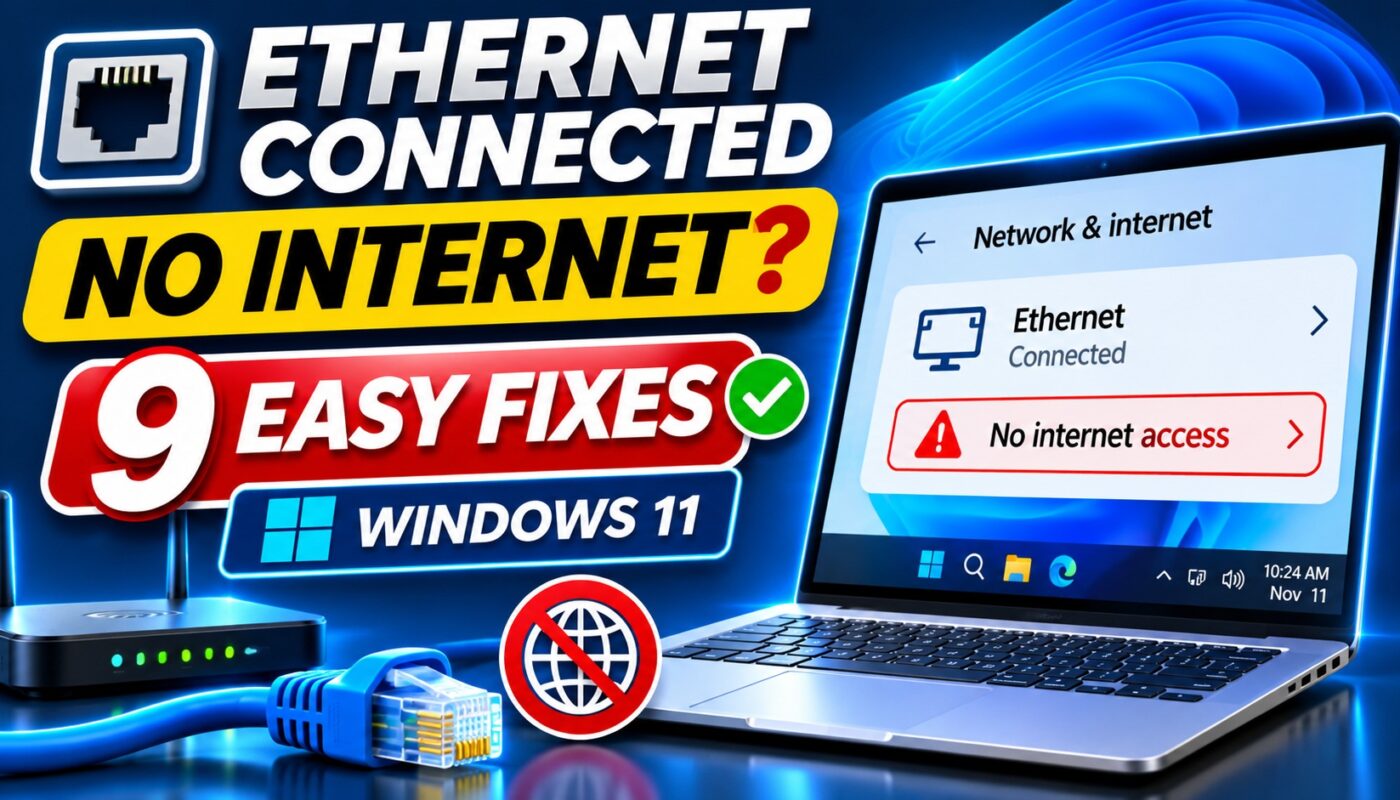
Ethernet Connected But No Internet on Windows 11 is a frustrating problem, especially when your computer recognizes the LAN cable but websites refuse to load. You may see a network icon indicating a wired connection, yet your browser displays an error or Windows reports that internet access is unavailable.
A wired Ethernet connection is generally reliable, but it can still fail because of damaged cables, router problems, incorrect IP settings, DNS issues, or network adapter drivers.
Fortunately, many of these problems can be fixed without reinstalling Windows or replacing your computer.
In this guide, you will learn nine practical troubleshooting methods to restore your Ethernet connection on Windows 11.
Why Is Ethernet Connected But No Internet on Windows 11?
An Ethernet connection links your computer to a router, modem, or local network through a cable. However, being connected to a local network does not necessarily mean your computer can reach the internet.
Common reasons include:
- A damaged or loosely connected Ethernet cable
- Router or modem connectivity problems
- Internet service provider outages
- Incorrect IP address or gateway settings
- DNS server problems
- Outdated or malfunctioning Ethernet drivers
- VPN or proxy configuration issues
- Incorrect Windows network settings
For example, your computer may successfully communicate with the router while the router itself has lost its internet connection.
If you are experiencing a similar problem over Wi-Fi, see our related guide on WiFi Connected But No Internet on Windows 11.
1. Check Your Ethernet Cable and LAN Port
The first step is to inspect the physical connection.
An Ethernet cable may appear connected even when it is damaged or not seated properly.
How to check your Ethernet connection
- Disconnect the Ethernet cable from your computer.
- Inspect the connector for visible damage.
- Reconnect the cable firmly.
- Check the other end connected to the router or switch.
- Try another LAN port if one is available.
- Test with a different Ethernet cable.
If your router has LAN indicator lights, check whether the connected port shows activity.
Practical tip: If replacing the cable immediately restores internet access, the original cable or connector may have been faulty.
2. Restart Your Router and Computer
Temporary router or network problems can interrupt internet access.
Restarting your equipment may restore communication between your computer and internet provider.
Steps
- Save your work.
- Restart your Windows 11 computer.
- Turn off your router or modem.
- Wait approximately 30 seconds.
- Turn the equipment back on.
- Wait for its internet connection to initialize.
- Test your Ethernet connection again.
If other devices also cannot access the internet, investigate the router or contact your internet service provider.
Microsoft also recommends checking the cable, router, and connection status in its official Ethernet troubleshooting guide.
3. Fix Ethernet Connected But No Internet with Windows Troubleshooter
Windows 11 includes built-in network diagnostics that can help identify common connection problems.
How to run the troubleshooter
- Open Settings.
- Select System.
- Click Troubleshoot.
- Open Other troubleshooters.
- Find Network and Internet.
- Select Run.
- Follow the instructions in the Get Help application.
The exact interface may vary depending on your Windows 11 version.
After completing the troubleshooting process, open a website to check whether internet access has returned.
4. Disable and Re-enable Your Ethernet Adapter
Sometimes a network adapter becomes temporarily unresponsive.
Disabling and re-enabling the adapter may restore normal operation.
Steps to restart your Ethernet adapter
- Right-click the Start button.
- Select Device Manager.
- Expand Network adapters.
- Locate your Ethernet adapter.
- Right-click the adapter.
- Select Disable device.
- Wait a few seconds.
- Right-click the adapter again.
- Select Enable device.
Check your connection afterward.
Important: This temporarily disconnects the network. Avoid doing it during remote support sessions or when your computer relies on Ethernet for remote access.
5. Renew Your IP Address in Windows 11
Your router usually assigns an IP address automatically through DHCP.
If your computer receives an invalid or outdated configuration, internet access may fail.
How to renew your IP address
- Open the Start menu.
- Search for Command Prompt.
- Select Run as administrator.
- Enter:
ipconfig /release
- Press Enter.
- Then enter:
ipconfig /renew
- Press Enter again.
Wait for Windows to obtain updated network information.
You can then run:
ipconfig
Check whether the Ethernet adapter has a valid IPv4 address and default gateway.
If the address begins with 169.254, Windows may not be receiving a valid address from DHCP.
Note: These commands are intended primarily for automatically assigned IP configurations. If you use a static IP address or managed workplace network, consult your administrator before changing settings.
6. Fix Ethernet Connected But No Internet by Flushing DNS
DNS converts website names into IP addresses.
If Windows stores outdated DNS records, some websites may fail to load even when the wired network connection is active.
How to flush the DNS cache
- Open Command Prompt as administrator.
- Enter:
ipconfig /flushdns
- Press Enter.
- Wait for the confirmation message.
- Close Command Prompt.
- Test several websites.
Flushing DNS does not delete personal files, documents, or browser bookmarks.
If the problem continues, read our detailed guide on DNS Server Not Responding? 9 Ways to Fix It on Windows 11.
That article explains additional DNS troubleshooting methods, including DNS server configuration and Windows network commands.
7. Update Your Ethernet Network Driver
A network driver allows Windows to communicate with your Ethernet hardware.
An outdated or corrupted driver can cause connection problems.
How to update an Ethernet driver
- Open Device Manager.
- Expand Network adapters.
- Find your Ethernet controller.
- Right-click it.
- Select Update driver.
- Choose Search automatically for drivers.
- Follow the displayed instructions.
If Windows cannot find a suitable driver, visit the official website of your computer or network adapter manufacturer.
Download the driver that matches your hardware model and Windows version.
Avoid downloading network drivers from unfamiliar websites.
If the problem started immediately after a driver update, check whether the Roll Back Driver option is available in the adapter’s properties.
8. Check VPN and Proxy Settings
VPN applications and proxy servers can change how your computer connects to the internet.
An incorrect configuration may prevent browsing even when Ethernet is connected.
Check your proxy settings
- Open Settings.
- Select Network & internet.
- Click Proxy.
- Review the configured proxy options.
- Disable an unnecessary manual proxy only if it is not required.
If you use a VPN, temporarily disconnect it and test your connection.
For more information, read Microsoft’s official guide to proxy settings in Windows.
Important: Do not change VPN or proxy settings on company-managed computers without authorization.
9. Fix Ethernet Connected But No Internet with Network Reset
If the previous solutions fail, consider using Windows Network Reset.
This is a more advanced troubleshooting method and should generally be your last option.
How to reset network settings
- Open Settings.
- Select Network & internet.
- Click Advanced network settings.
- Select Network reset.
- Click Reset now.
- Confirm the action.
- Allow Windows to restart.
After restarting, reconnect the Ethernet cable and test the connection.
Warning: Network Reset removes and reinstalls network adapters and restores related settings to their defaults. You may need to reconfigure VPN clients, virtual network adapters, and customized network settings.
Microsoft recommends using Network Reset after trying less disruptive troubleshooting methods.
How to Check Whether the Ethernet Problem Is Fixed
After applying a solution, perform these simple tests.
Test 1: Open multiple websites
Try opening two or three familiar websites.
If they load normally, your internet connection may be working again.
Test 2: Check your network configuration
Open Command Prompt and run:
ipconfig /all
Review the Ethernet adapter’s IP address, default gateway, and DNS server information.
If important information is missing, investigate the router or DHCP configuration.
Test 3: Compare another device
Connect another computer to the same router using a working Ethernet cable, if possible.
If both computers fail, the router, network equipment, or internet provider may be responsible.
If only one computer fails, focus on its Windows settings or network adapter.
Ethernet vs Wi-Fi: Which Connection Is Better?
Both Ethernet and Wi-Fi can provide reliable internet access.
Ethernet uses a physical cable, while Wi-Fi uses wireless signals.
Ethernet often offers lower latency and more consistent performance, especially for desktop computers, gaming, and large file transfers.
Wi-Fi offers greater convenience and mobility.
However, neither connection guarantees internet access when the router or service provider is experiencing an outage.
How to Prevent Ethernet Connection Problems
A few simple habits can reduce recurring connectivity issues:
- Use undamaged Ethernet cables.
- Avoid bending cables sharply.
- Keep Windows and network drivers updated.
- Install router firmware updates from official sources.
- Avoid unnecessary changes to IP and DNS settings.
- Keep network equipment properly ventilated.
- Record customized settings before troubleshooting.
Frequently Asked Questions
1. Why does Ethernet say connected but no internet?
Your computer may be connected to the local network while the router has no internet access. Incorrect IP settings, DNS failures, driver problems, and proxy configuration issues can also cause this problem.
2. How do I fix Ethernet connected but no internet quickly?
Start by checking the Ethernet cable, restarting your router and computer, and running the Windows network troubleshooter.
3. Can a damaged Ethernet cable cause internet problems?
Yes. A damaged cable or faulty connector can interrupt network communication or cause an unstable connection.
4. Does flushing DNS fix Ethernet problems?
Flushing DNS may help when outdated DNS records prevent websites from loading. However, it will not repair a damaged cable or an internet service provider outage.
5. Why does Wi-Fi work but Ethernet does not?
The Ethernet cable, LAN port, wired network adapter, or its driver may be causing the problem. Check the physical connection and adapter settings first.
6. Will Network Reset delete my personal files?
No. Network Reset does not delete personal documents, but it resets network adapters and related configuration settings.
7. Should I reinstall Windows to fix Ethernet connectivity?
Usually not. Most connection problems should be investigated through cables, drivers, router checks, and Windows network settings before considering a major operating system change.
Conclusion
The Ethernet Connected But No Internet problem in Windows 11 can interrupt online work, video meetings, downloads, and everyday browsing.
However, the issue does not always mean your computer or network adapter is damaged.
Begin with simple checks such as inspecting the Ethernet cable, restarting your router, and running Windows diagnostics. If those steps fail, investigate IP settings, DNS configuration, network drivers, and proxy settings.
Use Network Reset only after trying less disruptive solutions.
By identifying whether the problem comes from Windows, your network hardware, or your internet service provider, you can restore connectivity more efficiently and avoid unnecessary repairs.