 by
by Is the Print Spooler keeps stopping error preventing you from printing documents on Windows 11?
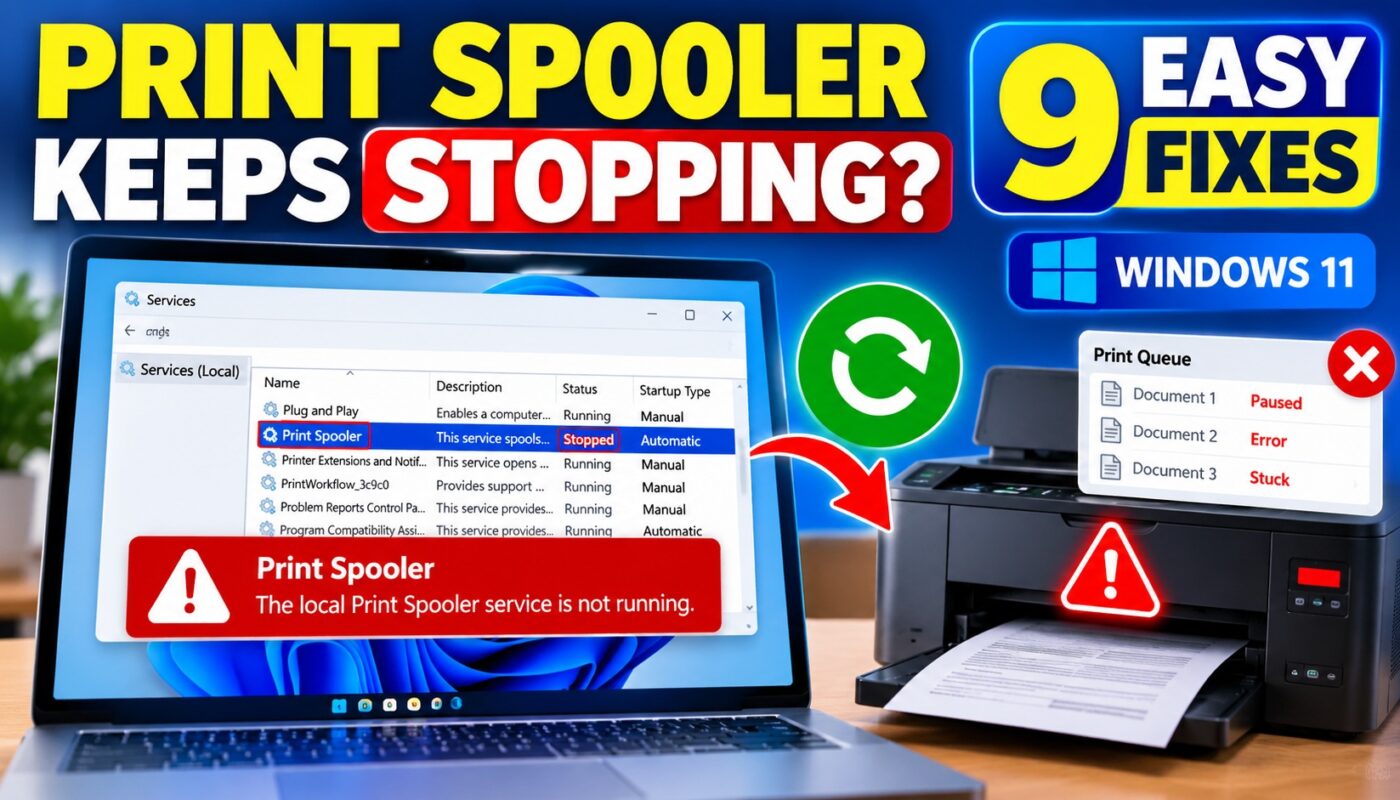
You may notice that your printer suddenly stops responding, print jobs remain stuck in the queue, or Windows displays the message “The local Print Spooler service is not running.”
The Print Spooler is an essential Windows service responsible for managing print jobs and sending documents to your printer.
When this service stops unexpectedly, your computer may be unable to print even when the printer is properly connected.
Fortunately, there are several ways to troubleshoot this problem.
In this guide, you will learn 9 practical solutions to fix Print Spooler problems in Windows 11, including restarting the service, clearing corrupted print jobs, updating printer drivers, and repairing Windows system files.
Why Does Print Spooler Keep Stopping in Windows 11?
The Print Spooler service manages communication between Windows applications and installed printers.
When you print a document, Windows places the print job in a queue before sending it to the printer.
If the service crashes or becomes unresponsive, printing may stop.
Common causes include:
- Corrupted print queue files
- Outdated or incompatible printer drivers
- Conflicting printer software
- Incorrect Print Spooler service settings
- Damaged Windows system files
- Problems following a Windows update
- Printer driver installation errors
- Conflicts involving multiple installed printers
The exact cause can vary depending on your printer model, driver, and Windows configuration.
Before attempting advanced troubleshooting, restart your computer and printer.
If the problem continues, follow the solutions below.
Fix 1: Restart Print Spooler Service in Windows 11
Restarting the Print Spooler service is one of the easiest troubleshooting methods.
Steps to Restart Print Spooler
- Press Windows + R.
- Type
services.msc. - Press Enter.
- Locate Print Spooler.
- Right-click the service.
- Select Restart.
- Wait for the service to restart.
If the service is stopped, select Start instead.
Now open a document and try printing again.
Tip: If Print Spooler stops again immediately, continue with the next solutions.
Fix 2: Clear Stuck Print Jobs to Fix Print Spooler Errors
Corrupted or stuck print jobs can interfere with the printing process.
Removing these jobs may restore normal operation.
How to Clear the Print Queue
- Open Settings using Windows + I.
- Select Bluetooth & devices.
- Click Printers & scanners.
- Choose your printer.
- Select Open print queue.
- Cancel any stuck print jobs.
Try printing a new document.
What If Print Jobs Cannot Be Deleted?
If the print queue remains frozen, you may need to clear the spool folder manually.
Follow the next solution carefully.
Fix 3: Delete Corrupted Print Spooler Files in Windows 11
Windows temporarily stores print jobs in the spool folder.
If these temporary files become corrupted, printing may fail.
How to Clear the Print Spooler Folder
Step 1: Stop Print Spooler
- Press Windows + R.
- Enter
services.msc. - Locate Print Spooler.
- Right-click and select Stop.
Step 2: Open the Spool Folder
Press Windows + R and enter:
%WINDIR%\System32\spool\PRINTERS
Press Enter.
If Windows requests administrator permission, approve it only if you are authorized to manage the computer.
Step 3: Delete Temporary Print Jobs
Delete the files inside the PRINTERS folder.
Do not delete the PRINTERS folder itself or unrelated files elsewhere in the spool directory.
Important: This process removes pending print jobs, including jobs submitted by other users on a shared computer.
Step 4: Restart Print Spooler
- Return to Services.
- Right-click Print Spooler.
- Select Start.
Try printing a test page.
This procedure follows Microsoft’s recommended approach for clearing stuck print jobs.
Fix 4: Change Print Spooler Startup Type to Automatic
Incorrect service configuration may prevent Print Spooler from starting normally.
Steps
- Press Windows + R.
- Type
services.msc. - Press Enter.
- Double-click Print Spooler.
- Find Startup type.
- Select Automatic.
- Click Apply.
- Click Start if the service is stopped.
- Select OK.
Restart Windows and check whether the service remains running.
Note: Automatic startup helps Windows start the service, but it does not repair an underlying driver crash or corrupted print job.
Fix 5: Update Printer Drivers When Print Spooler Keeps Stopping
Outdated or incompatible printer drivers can cause printing errors and service instability.
Updating the correct driver may resolve the problem.
How to Update Your Printer Driver
- Right-click Start.
- Open Device Manager.
- Expand Printers or Print queues, if available.
- Locate your printer.
- Right-click it.
- Select Update driver.
- Choose Search automatically for drivers.
If Windows does not find a suitable driver, visit your printer manufacturer’s official support website.
Search using the exact printer model and download a compatible Windows 11 driver.
Avoid installing printer drivers from unknown websites.
When Should You Reinstall the Driver?
Consider reinstalling the driver if:
- Printing stopped after a driver update.
- Windows reports a driver compatibility error.
- The printer driver installation is damaged.
- Print Spooler repeatedly crashes when a specific printer is used.
Before uninstalling a driver, make sure you have the correct replacement driver available.
Fix 6: Remove Unused Printers and Conflicting Printer Software
Old printer installations and incompatible printer software may sometimes contribute to Print Spooler problems.
Remove an Unused Printer
- Open Settings.
- Select Bluetooth & devices.
- Open Printers & scanners.
- Choose a printer you no longer use.
- Click Remove.
- Confirm the action.
Restart your computer and test printing.
Important Precaution
Do not remove printers used by other family members, office users, or shared network devices without checking first.
If your computer is managed by an organization, contact your IT administrator before removing printer software.
Fix 7: Repair Windows System Files Using SFC and DISM
Damaged Windows system files can sometimes interfere with system services.
Windows includes tools that can check and repair certain system components.
Step 1: Open Command Prompt
- Click Start.
- Search for Command Prompt.
- Select Run as administrator.
Step 2: Run DISM
Enter:
DISM /Online /Cleanup-Image /RestoreHealth
Press Enter and wait for the process to complete.
An internet connection may be required to obtain repair files.
Step 3: Run System File Checker
Enter:
sfc /scannow
Press Enter.
Allow Windows to finish scanning.
Restart your computer if prompted, then test the printer again.
Note: These commands repair certain Windows component and system-file problems. They do not guarantee a fix for faulty printer drivers or hardware.
Fix 8: Run the Windows 11 Printer Troubleshooter
Windows 11 includes automated troubleshooting through the Get Help application.
Steps
- Open the Start menu.
- Search for Get Help.
- Open the application.
- Search for Printer troubleshooter.
- Follow the displayed instructions.
- Apply any recommended solutions.
After troubleshooting, restart your computer if necessary.
Try printing a test page to confirm whether the issue is resolved.
Fix 9: Check Windows Updates and Printer Compatibility
Sometimes printing problems begin after changes to Windows or printer software.
Checking compatibility and available updates can help.
Check for Windows Updates
- Press Windows + I.
- Select Windows Update.
- Click Check for updates.
- Install appropriate updates.
- Restart your computer if required.
Check Printer Compatibility
Visit your printer manufacturer’s official website.
Confirm that your printer model supports your installed version of Windows 11.
Download the recommended driver or firmware only from trusted official sources.
If the problem started immediately after a driver update, check whether Roll Back Driver is available in Device Manager.
Avoid uninstalling Windows security updates as your first troubleshooting step.
Print Spooler Keeps Stopping After Restart: What Should You Do?
If Print Spooler works temporarily but stops again after restarting Windows, the underlying problem may still exist.
Try these checks:
- Confirm that the Print Spooler startup type is Automatic.
- Remove stuck print jobs.
- Update or reinstall the affected printer driver.
- Disconnect the printer temporarily and check whether the service remains running.
- Review Windows Event Viewer for errors associated with Print Spooler.
How to Check Print Spooler Errors in Event Viewer
- Press Windows + R.
- Type
eventvwr.msc. - Press Enter.
- Expand Windows Logs.
- Select Application.
- Look for errors around the time Print Spooler stopped.
Error details may help identify a faulty printer driver or related component.
If you are unsure how to interpret these errors, contact your printer manufacturer’s support team or an IT professional.
How to Prevent Print Spooler Problems in Windows 11
You can reduce the likelihood of recurring printing problems by following a few maintenance practices.
Keep Printer Drivers Updated
Use compatible drivers from Windows Update or the manufacturer’s official website.
Avoid Unnecessary Printer Software
Remove outdated printer applications only when you are certain they are no longer needed.
Monitor Stuck Print Jobs
If a document remains in the queue for a long time, investigate it before repeatedly submitting the same job.
Restart the Printer When Necessary
A temporary printer communication problem may be resolved by restarting the printer.
Keep Windows Updated
Install appropriate security and reliability updates.
Frequently Asked Questions (FAQs)
1. Why does Print Spooler keep stopping in Windows 11?
Print Spooler may stop because of corrupted print jobs, incompatible printer drivers, conflicting software, or Windows system problems.
2. How do I restart Print Spooler in Windows 11?
Press Windows + R, enter services.msc, locate Print Spooler, right-click it, and select Restart.
3. How do I fix the Print Spooler service not running error?
Start by restarting the service. If the problem continues, clear the print queue, check the service startup type, and update printer drivers.
4. Is it safe to clear the Print Spooler folder?
Clearing temporary files inside the PRINTERS spool folder is a recognized troubleshooting method. However, it deletes pending print jobs. Stop Print Spooler before clearing the files.
5. Can printer drivers cause Print Spooler crashes?
Yes. Faulty, outdated, or incompatible printer drivers can contribute to Print Spooler crashes.
6. Will restarting Print Spooler delete my documents?
Restarting the service does not normally delete the original documents saved on your computer. However, clearing the print queue removes pending printing tasks.
7. Why does Print Spooler stop after every restart?
Possible causes include damaged drivers, conflicting software, corrupted print jobs, or system configuration problems.
8. Does Print Spooler affect network printers?
Yes. Windows uses Print Spooler to manage printing tasks for many local and network printers.
Related Windows Printer Troubleshooting Guides
If you are experiencing other printer problems, explore these related articles.
Windows Couldn’t Connect to the Printer
If Windows cannot connect to a shared or network printer, read our guide:
Windows Couldn’t Connect to the Printer: 9 Easy Fixes
Printer Offline Windows 11
If your printer appears offline even when it is powered on, follow this troubleshooting guide:
Printer Offline Windows 11: 9 Easy Ways to Fix It
Printer Not Found Windows 11
If Windows cannot detect your printer, read:
Printer Not Found Windows 11: How to Fix Printer Detection Problems
Official Microsoft Troubleshooting Resources
For additional assistance, consult these official Microsoft guides:
Fix Print Spooler Service Not Running Errors in Windows
Fix Print Job Stuck in Queue Errors in Windows
Conclusion
The Print Spooler keeps stopping problem in Windows 11 can interrupt printing and leave important documents stuck in the queue.
In many cases, restarting the Print Spooler service, clearing temporary print jobs, or updating the printer driver can restore normal printing.
If the issue continues, check service settings, repair Windows system files, and investigate potential driver conflicts.
Start with simple solutions before attempting advanced troubleshooting.
By following these nine methods, you can identify common causes of Print Spooler problems and work toward restoring reliable printing on Windows 11.