 by
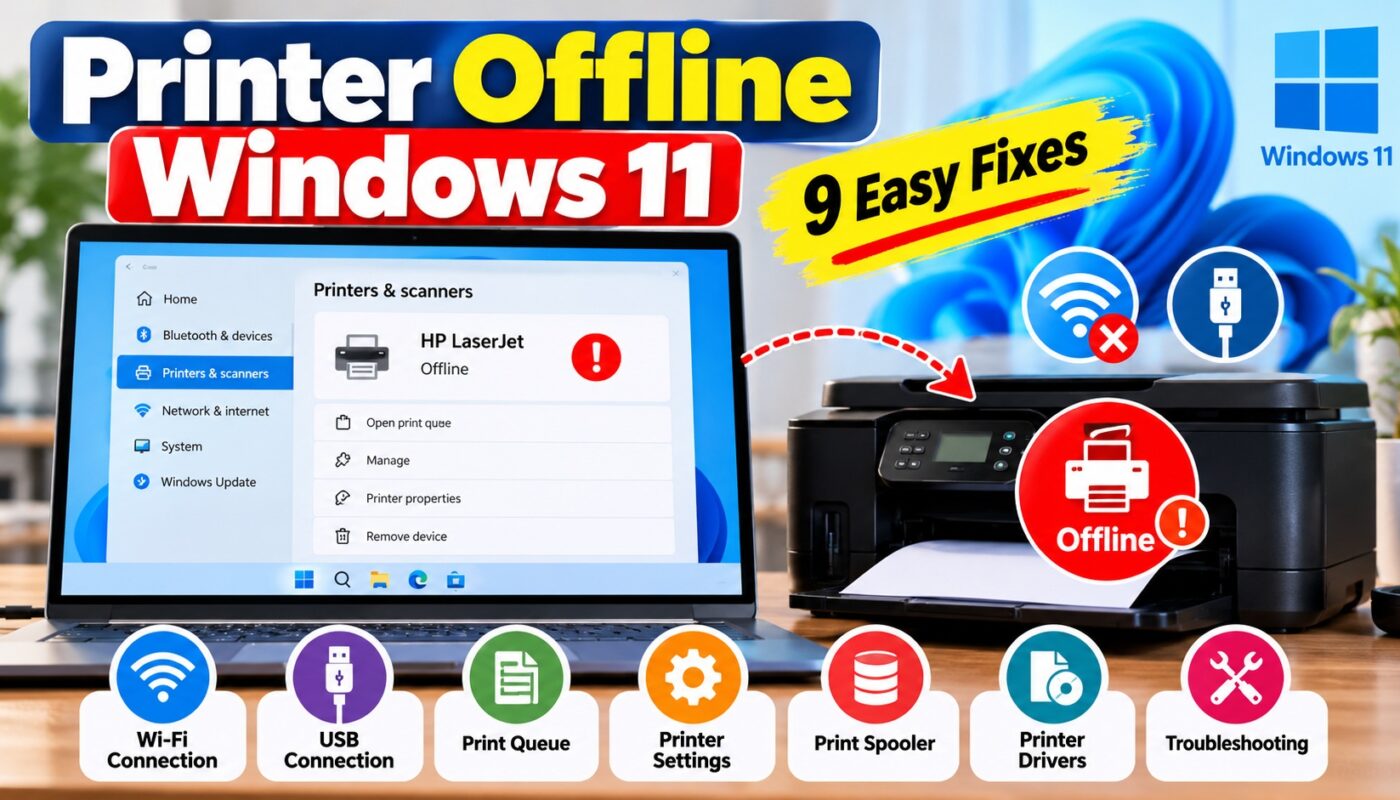
by Is your printer showing Offline in Windows 11 even though it is turned on and connected? This issue can prevent you from printing documents, photos, and important files.
The good news is that you can often fix the problem without replacing your printer. In this guide, you’ll learn nine practical ways to resolve the Printer Offline Windows 11 error.
However, this problem does not always mean your printer is damaged. In many cases, you can restore the connection by following a few simple troubleshooting steps.
Why Does Printer Offline Windows 11 Error Occur?
A printer may appear offline when Windows cannot communicate with it correctly.
Common causes include:
- A disconnected USB cable or unstable Wi-Fi connection
- Incorrect printer settings
- Pending or stuck print jobs
- Problems with the Print Spooler service
- Outdated or incompatible printer drivers
- A changed network connection or printer IP address
1. Restart Your Printer and Computer
Start with a simple restart.
- Turn off your printer.
- Disconnect its power cable.
- Wait approximately 30 seconds.
- Reconnect the power cable and turn on the printer.
- Restart your Windows 11 computer.
- Check the printer status again.
This can resolve temporary communication problems.
2. Check Your Printer’s USB or Wi-Fi Connection
For a USB printer, make sure the cable is firmly connected. Try another USB port if necessary.
For a wireless printer, confirm that your computer and printer are connected to the same Wi-Fi network.
Also check whether the printer’s screen displays a network connection error.
3. Fix Printer Offline Windows 11 Using Printer Settings
Sometimes Windows may be configured to use a printer in offline mode.
- Open Control Panel.
- Navigate to Devices and Printers or the available printer management view.
- Open your printer’s print queue.
- Look for the Printer menu.
- If Use Printer Offline is checked, disable it.
The exact menu layout may vary depending on your Windows 11 version.
4. Run the Windows 11 Printer Troubleshooter
Windows 11 provides an automated printer troubleshooter through the Get Help app.
For additional troubleshooting steps, visit Microsoft’s official Windows printer troubleshooting guide.
- Open the Start menu.
- Search for Get Help.
- Open the app.
- Search for printer troubleshooting.
- Follow the instructions displayed.
The troubleshooter may identify and help resolve common printing problems.
5. Clear Pending Print Jobs
A stuck document may prevent other print jobs from completing.
- Open Settings.
- Select Bluetooth & devices.
- Click Printers & scanners.
- Select your printer.
- Open the print queue.
- Cancel unnecessary or stuck print jobs.
After clearing the queue, try printing a test page.
Sometimes, a stuck print job can prevent new documents from printing. Therefore, clearing the print queue is a useful troubleshooting step.
6. Restart the Print Spooler Service
The Print Spooler service manages printing tasks in Windows.
- Press Windows + R.
- Type
services.msc. - Press Enter.
- Find Print Spooler.
- Right-click it.
- Select Restart.
Try printing again after the service restarts.
If you use a shared office printer, consult your administrator before making service changes.
7. Set Your Printer as the Default Printer
Windows may send your document to another printer.
- Open Settings.
- Go to Bluetooth & devices → Printers & scanners.
- Select your printer.
- Choose Set as default, if available.
If the option is missing, turn off Let Windows manage my default printer and try again.
8. Update or Reinstall Your Printer Driver
An outdated or incompatible driver can cause printer communication problems.
Visit your printer manufacturer’s official support website, such as HP, Canon, Epson, or Brother.
Find your exact printer model and check whether a Windows 11-compatible driver is available.
Install the recommended driver and restart your computer if instructed.
Avoid downloading drivers from unknown third-party websites.
9. Remove and Add the Printer Again
If the printer still appears offline, try removing and reconnecting it.
- Open Settings → Bluetooth & devices → Printers & scanners.
- Select the affected printer.
- Choose Remove.
- Restart the computer.
- Return to Printers & scanners.
- Select Add device.
- Follow the instructions to reconnect the printer.
For wireless printers, verify the network connection before reinstalling.
If Windows 11 cannot detect your printer even after reconnecting it, read our detailed guide on Printer Not Found Windows 11 for additional troubleshooting solutions.
Printer Offline Windows 11: Wi-Fi Connection Fix
If your printer is connected to Wi-Fi but Windows still reports it as offline, check whether its network address has changed.
Restart the printer and router, verify both devices are on the correct network, and review the printer’s network status.
Advanced network configuration should follow the printer manufacturer’s instructions.
How to Prevent Printer Offline Problems
Keep your printer drivers updated, maintain a stable network connection, remove unnecessary print jobs, and regularly check for printer firmware updates from the manufacturer.
Avoid disconnecting USB printers while they are processing print jobs.
Frequently Asked Questions
Why does my printer say offline when it is connected?
Windows may be unable to communicate with the printer because of network issues, printer settings, driver problems, or a stuck print queue.
How do I bring my printer back online in Windows 11?
Check its connection, restart the printer, clear the print queue, run the Get Help printer troubleshooter, and restart the Print Spooler service.
Can a printer driver cause an offline error?
Yes. An incompatible or outdated printer driver can interfere with communication between Windows and your printer.
Does restarting Print Spooler fix printer offline problems?
It can resolve some problems caused by the Windows printing service, but it will not fix every connection or hardware issue.
Do I need to reinstall Windows 11 to fix my printer?
Usually not. Try standard printer troubleshooting before considering major system changes.
Conclusion
The Printer Offline Windows 11 problem can often be resolved by checking connections, correcting printer settings, clearing pending jobs, restarting Print Spooler, or reinstalling the printer.
Start with the easiest solutions and proceed to advanced troubleshooting only when necessary.
For more help, visit Microsoft’s official Windows printer troubleshooting documentation.
Finally, if your printer still appears offline, check the manufacturer’s official support website for model-specific troubleshooting instructions.