 by
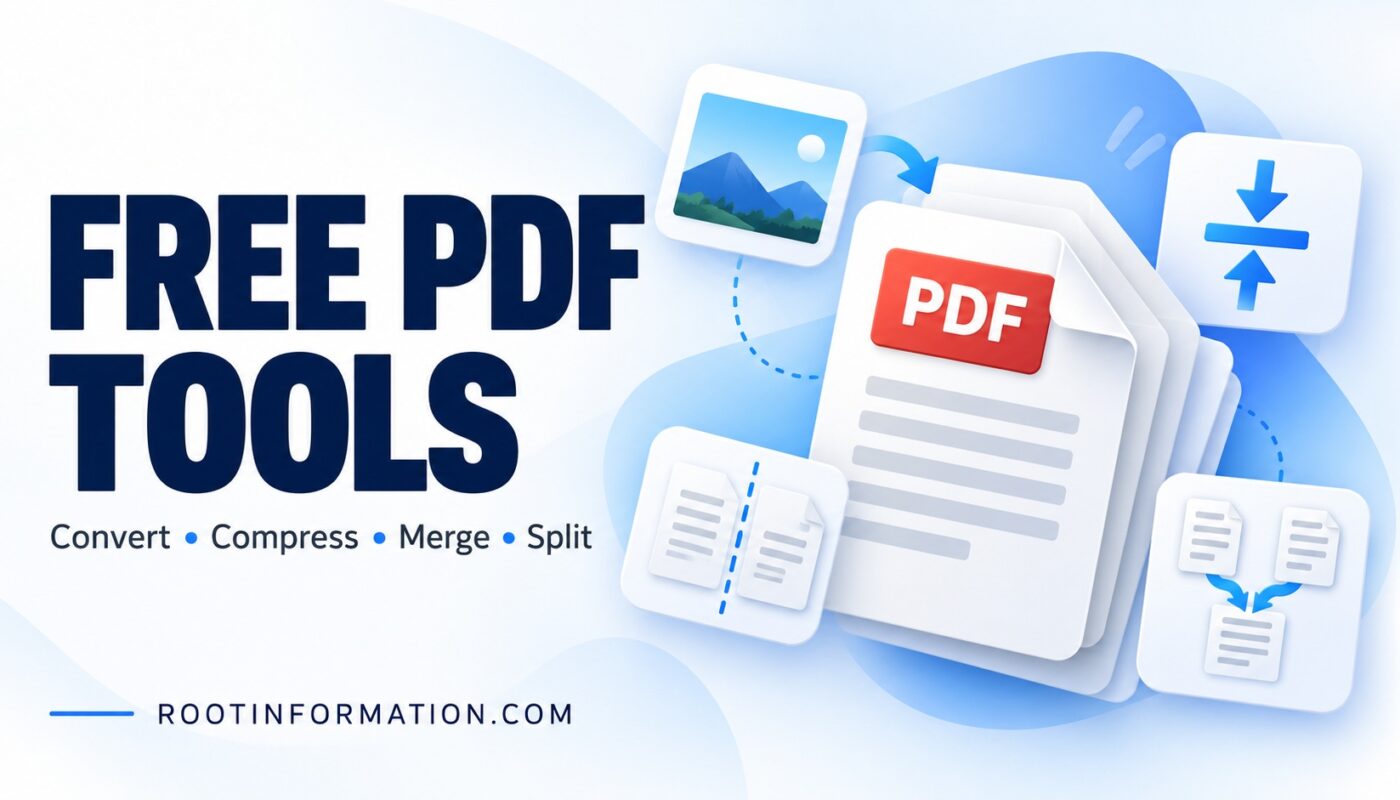
by Free PDF tools online help you compress PDFs to a chosen KB or MB limit, merge documents, split pages and convert images—all in one place.
Small tasks.
Better PDFs.
Convert, combine and organize your documents.
Seven simple tools, all in one place.
No matching tools. Try “image”, “merge” or “compress”.
Pick the task you need.
Arrange pages and adjust settings.
Save the result to your device.
Image to PDF Converter
Turn your photos into one neatly arranged PDF. Your images stay on your device.
No images selected
Auto Crop / Document Scanner
Automatically detect the four paper edges, straighten the photo, and save an image or PDF.
Review and apply every crop first. PDF and ZIP follow the photo order above. ZIP uses the selected JPG/PNG format.
1. Check the four corners
Corners are set automatically. Drag a blue handle only if an edge needs correction. Arrow keys fine-tune the selected corner.
2. Cropped preview
Apply the crop to see your result.
Fine-tune corner positions (percent)
Best for a light document on a contrasting surface with all four corners visible. Always review the outline. The 100-megapixel limit applies to each input photo. Large batches may need fewer photos on a phone. Processing stays on your device; working images are limited to 3,000 px and exports to 2,400 px on the longest edge. Cropping cannot recover detail lost in WhatsApp compression. No OCR or background removal.
Up to 50 MB total • 10 files for merge • 100 pages maximum per result
Compression turns pages into images. Searchable text, links, forms and signatures will not remain interactive. For a target size, resolution and quality adjust automatically. If the target cannot be met, no file is downloaded. Check readability and keep your original PDF.
Free PDF Tools Online: Convert, Compress, Merge and Split PDFs
Use our free PDF tools online to convert images to PDF, compress files to a chosen KB or MB limit, merge documents and split pages—all in one place.
Root Information’s free PDF tools online bring six everyday document tasks together on one page. You can create a PDF from images, convert PDF pages into pictures, merge documents, split pages, compress a PDF to a chosen size limit, or change its page size to A4 or Letter.
Choose a tool above, add your files, adjust the settings and download the result. You do not need to create an account or install a desktop application.
What Can You Do with Our Free PDF Tools Online?
| Tool | What it does | Useful for |
|---|---|---|
| Image to PDF | Combines JPG, PNG or WebP photos into a PDF | Certificates, receipts and photographed documents |
| Compress PDF | Attempts to reduce a PDF to your chosen KB or MB limit | Online forms and upload limits |
| Merge PDF | Joins multiple PDF files in your preferred order | Applications and document collections |
| Split PDF | Extracts selected pages or saves pages separately | Sharing only the pages you need |
| PDF to Image | Exports pages as JPG or PNG images in a ZIP | Page previews and image-based sharing |
| Page Resize | Fits PDF pages onto A4 or US Letter | Consistent page dimensions for printing |
Free PDF Tools Online: Convert Images to PDF
If your documents are saved as photos, Image to PDF lets you put them into one file. It supports JPG, PNG and WebP images. You can preview the pictures before converting them.
- Open Image to PDF and select your images.
- Use the arrow buttons to put them in the correct order. Remove any unwanted image.
- Choose A4, US Letter or Fit Image. Adjust the orientation and margins if needed.
- Choose image quality. If you have an upload limit, enter an optional Target PDF size in KB.
- Enter a filename and select Convert & download PDF.
For example, you can combine the front and back of a certificate into one PDF. Check that both images are upright and the writing is clear before downloading.
Free PDF Tools Online: Compress PDF to Your Chosen Size
The Compress PDF tool includes a manual target-size field. Enter a maximum size, such as 100 KB, 200 KB, 500 KB or 1 MB. The tool adjusts image quality and resolution, then checks the size of the complete PDF.
- Open Compress PDF and select your PDF.
- Enter a number in Target PDF size.
- Select KB or MB.
- Select Process & download and wait for processing to finish.
- Open the downloaded PDF and check its size and readability.
Suppose a portal allows a maximum of 200 KB. Enter 200 and choose KB. The aim is a file at or below that limit, rather than a file of exactly 200 KB. A 175 KB result is also within your limit.
If the original PDF already fits the target, the tool returns its original bytes without reducing quality. If the target cannot be reached within the available compression settings, it displays a message instead of downloading an oversized result. You can then increase the target or use fewer pages.
Important: When compression is needed, pages are converted into images. Selectable text, clickable links, interactive forms and digital-signature functionality are not preserved in that compressed result. Strong compression can make small writing difficult to read. Always keep your original document.
Leave the target field blank if you prefer to use the quality and resolution settings without a specific size limit. Ordinary compression does not guarantee a smaller file.
Free PDF Tools Online: Merge Your Documents
Use Merge PDF when an application needs several documents in one attachment. Add your PDFs, arrange the files with the up and down buttons, then select Process & download.
The file order becomes the page order in the combined PDF. For an application, you might place the application form first, followed by qualifications and supporting documents. Review the merged file before submitting it.
How to Split PDF and Extract Selected Pages
Open Split PDF and select a document. In the Pages field, enter a selection such as 1-3,5 to include pages 1, 2, 3 and 5. Leave the field blank to select all pages.
Choose whether to download the selected pages together in one PDF or save each selected page as a separate PDF inside a ZIP file. Page numbers start at 1 and must fall within the uploaded document.
How to Convert PDF to JPG or PNG
PDF to Image turns entire PDF pages into pictures. Select your PDF, enter any page selection, choose JPG or PNG and pick a resolution. The images are downloaded together in a ZIP file, which you can extract on your device.
JPG is useful when a smaller image file is the priority. PNG is an alternative for page images; actual output size depends on the content. Higher resolution can produce sharper images, but it also uses more memory and storage. This tool exports page images, not editable Word documents.
PDF Page Resize vs PDF File Size
These settings solve different problems. Page Resize fits the page onto A4 or US Letter, with portrait or landscape orientation and optional margins. Compress PDF works on the file size measured in KB or MB.
If a website says “maximum 500 KB,” use Compress PDF. If a printing requirement says “A4,” use Page Resize. Interactive forms and annotations may not survive page resizing, so inspect the output.
Privacy, File Limits and Practical Tips
These tools process documents in your browser. The converter does not upload your selected files to a conversion server. Other website features, including advertising and analytics, have their own privacy practices.
- PDF inputs: Up to 50 MB total, with up to 10 files for merging and a maximum of 100 output pages.
- Image inputs: Up to 40 images, 15 MB per image and 100 MB total. Very large images may be rejected.
- Manual PDF compression target: From 10 KB to 100 MB. Targets use 1 KB = 1,000 bytes and 1 MB = 1,000,000 bytes.
- Protected documents: Password-protected PDFs are not supported.
- Mobile use: Try smaller batches if your browser slows down or runs out of memory.
For better results, photograph documents in good light, crop unnecessary borders before uploading and avoid compressing the same file repeatedly. Keep enough space around printed text. Processing can change document features or invalidate digital signatures, so work with copies.
Frequently Asked Questions
Are these PDF tools free to use?
Yes. You can use the six tools on this page without signing up. File and page limits still apply.
Can I compress a PDF to exactly 100 KB?
You can enter 100 KB as the maximum target. If achievable, the result will be at or below that limit. Exact byte size and unchanged quality are not guaranteed.
Will compressed text remain selectable?
When the tool needs to compress your PDF, it creates image-based pages, so the text will not remain selectable. If the original is already within your target, it is returned unchanged.
Can I use these tools on a phone?
Yes, in a compatible modern browser with JavaScript enabled. Large or complex documents may need smaller batches or a device with more memory.
Can I convert PDF to Word here?
No. PDF to Word and OCR are not included in the current tools.
What if the target size is too small?
The tool reports that it could not meet the limit and does not download an oversized file. Try a higher limit, reduce the page count, or start with cleaner source images.
Prepare Your Next PDF
Choose the tool that matches your task: Image to PDF for photographs, Merge or Split for organizing documents, PDF to Image for page pictures, Compress PDF for an upload-size limit, and Page Resize for A4 or Letter dimensions. After downloading, check the page order, clarity and final file size before you share or submit it.
Need audio from written content as well? Explore our free text to voice online tool.
To learn more about the file format, read Adobe’s guide to PDF.