 by
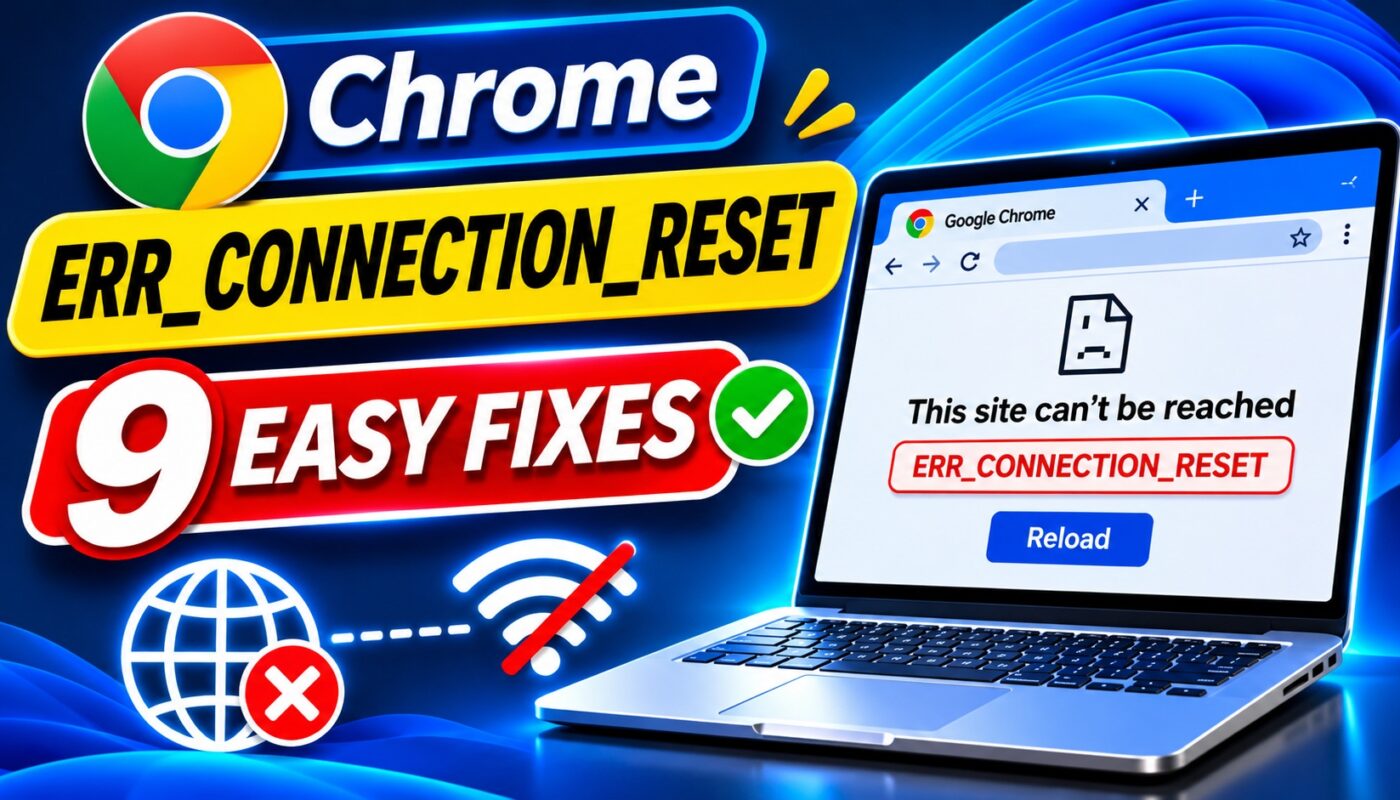
ERR_CONNECTION_RESET in Google Chrome can be frustrating, especially when you are trying to open an important website and suddenly see the message “This site can’t be reached.” The page may work on another device, or the error may appear only on certain websites.
This error generally means that the connection was unexpectedly interrupted before Chrome could finish loading the page. It does not necessarily mean your computer is damaged or the website has permanently disappeared.
Fortunately, several simple troubleshooting methods can help you identify and resolve the problem. This guide explains nine practical solutions for Windows 11 and Windows 10, along with useful checks for Mac users.
What Does ERR_CONNECTION_RESET Mean?
The ERR_CONNECTION_RESET error indicates that an established or attempted network connection was unexpectedly closed or reset.
For example, imagine opening an online learning website. Your computer connects to the internet, but the connection to that particular website is interrupted before the page loads.
Chrome may display:
“This site can’t be reached”
“The connection was reset.”
“ERR_CONNECTION_RESET”
The problem may involve your internet connection, router, VPN, firewall, browser settings, or the website’s server.
Google explains this error in its official Chrome error message guide.
Why Does ERR_CONNECTION_RESET Happen in Chrome?
Common causes include:
- An unstable Wi-Fi or Ethernet connection
- Temporary router or modem problems
- VPN or proxy configuration conflicts
- Browser extensions interfering with websites
- Firewall or antivirus restrictions
- Incorrect or outdated network settings
- Website server or hosting problems
- Browser software issues
- Network interruptions caused by switching connections
Before making changes, check whether the error affects one website or multiple websites. This helps narrow down the cause.
1. Fix ERR_CONNECTION_RESET by Checking Your Internet Connection
Start by confirming that your internet connection is working normally.
Open two or three trusted websites. If none of them loads, the issue may be with your internet connection rather than Chrome.
Try these steps:
- Disconnect and reconnect to your Wi-Fi network.
- Check whether other devices can access the internet.
- Restart your router if necessary.
- Try another trusted website.
- Test a wired connection if available.
If the error occurs only on one website, the website itself may be unavailable or blocking the connection.
For related network problems, read our guide: DNS Server Not Responding? 9 Ways to Fix It on Windows 11.
2. Restart Chrome and Your Computer
Sometimes temporary browser processes interfere with page loading.
Restarting Chrome clears those processes and allows the browser to establish a fresh connection.
Steps
- Save your work in open browser tabs.
- Close Google Chrome completely.
- Reopen Chrome.
- Visit the affected website.
- If the error continues, restart your computer.
If Chrome continues running in the background on Windows, you can check Task Manager for remaining Chrome processes.
Do not end browser processes while important unsaved work is open.
3. Fix ERR_CONNECTION_RESET by Clearing Chrome Cache
Chrome stores cached website resources to improve loading speed.
Occasionally, outdated or corrupted site data can contribute to loading problems.
How to clear cached files
- Open Chrome.
- Click the three-dot menu.
- Select Delete browsing data.
- Choose a suitable time range.
- Select Cached images and files.
- Click Delete data.
- Restart Chrome and test the website.
You can also remove site-specific data if only one website is affected.
Important: Clearing cookies may sign you out of websites. Do not select saved passwords unless you intend to remove them.
4. Disable Problematic Chrome Extensions
Browser extensions can change how websites load or how network requests are handled.
Privacy extensions, VPN extensions, and other add-ons may sometimes interfere with certain connections.
Steps
- Open Chrome.
- Enter
chrome://extensions. - Temporarily disable nonessential extensions.
- Reload the affected website.
- If it works, re-enable extensions one at a time.
- Identify which extension causes the problem.
If an extension is responsible, update it or contact its developer.
Avoid disabling security controls required by your workplace or school.
Google recommends testing extensions when troubleshooting Chrome connection and loading errors.
5. Fix ERR_CONNECTION_RESET by Flushing DNS
DNS helps your browser find the IP address associated with a website name.
If your computer has outdated DNS information, clearing the DNS cache may help resolve certain connection problems.
Steps for Windows 11 and Windows 10
- Open the Start menu.
- Search for Command Prompt.
- Select Run as administrator.
- Enter the following command:
ipconfig /flushdns
- Press Enter.
- Wait for the confirmation message.
- Restart Chrome and test the website.
Flushing DNS does not delete personal files.
However, it will not fix every ERR_CONNECTION_RESET error, especially when the problem involves a router, VPN, or website server.
6. Check VPN and Proxy Settings
VPNs and proxy servers can change the route your internet traffic takes.
An incorrect configuration or temporary service problem may interrupt website connections.
What to check
- Open your VPN application if you use one.
- Temporarily disconnect the VPN if permitted.
- Test the affected website.
- On Windows, open Settings → Network & internet → Proxy.
- Review any manually configured proxy settings.
Do not disable a required workplace or school proxy.
If disconnecting the VPN resolves the problem, contact your VPN provider or review its connection settings.
7. Fix ERR_CONNECTION_RESET by Updating Chrome
An outdated browser can experience compatibility problems with certain websites.
Keeping Chrome updated also helps maintain security.
How to update Google Chrome
- Open Chrome.
- Click the three-dot menu.
- Select Help.
- Click About Google Chrome.
- Allow Chrome to check for updates.
- Relaunch Chrome if requested.
After updating, reopen the affected website.
If Chrome cannot update, review the official Google Chrome Help documentation before reinstalling the browser.
8. Check Firewall and Antivirus Restrictions
Firewall and antivirus software help protect your device from malicious connections.
However, incorrect security settings can sometimes interfere with legitimate websites.
Recommended checks
- Open your device’s security application.
- Review recent alerts or blocked connections.
- Confirm that Chrome is not incorrectly restricted.
- Check whether a security update is available.
- Contact your administrator if the computer is managed.
Security warning: Do not permanently disable antivirus software or Windows Firewall simply to open a website.
If security software identifies a genuine threat, investigate the warning instead of bypassing it.
9. Fix ERR_CONNECTION_RESET with Windows Network Commands
If the previous methods fail, you can try resetting the Windows TCP/IP and Winsock configuration.
This is a more advanced troubleshooting step.
Steps
- Save your work.
- Open Command Prompt as administrator.
- Enter:
netsh winsock reset
- Press Enter.
- Then enter:
netsh int ip reset
- Press Enter.
- Restart your computer.
After restarting, reconnect to your network and test Chrome.
Important: These commands can change network configuration. VPN clients, custom network settings, and managed computers may require additional setup afterward. Consult your network administrator before using them on workplace devices.
ERR_CONNECTION_RESET on Mac: What Should You Check?
Mac users can also encounter this Chrome error.
Start with these steps:
- Restart Chrome.
- Check your Wi-Fi or Ethernet connection.
- Test the website in another browser.
- Temporarily disconnect a personal VPN if appropriate.
- Disable nonessential Chrome extensions.
- Clear Chrome’s cached files.
- Update Chrome and macOS.
If the website works in Safari but not Chrome, investigate Chrome-specific settings and extensions.
If it fails in every browser, the network or website itself may be responsible.
ERR_CONNECTION_RESET vs Other Chrome Errors
| Chrome Error | General Meaning |
|---|---|
| ERR_CONNECTION_RESET | The connection was unexpectedly interrupted |
| ERR_CONNECTION_TIMED_OUT | The connection took too long |
| ERR_INTERNET_DISCONNECTED | The device has no internet connection |
| ERR_NAME_NOT_RESOLVED | The website hostname could not be resolved |
| ERR_CONNECTION_REFUSED | The destination refused the connection |
These errors may look similar, but they do not always have the same cause.
How to Prevent ERR_CONNECTION_RESET Problems
You cannot prevent every network interruption, but these habits may help:
- Keep Chrome and your operating system updated.
- Use a stable internet connection.
- Keep router firmware updated through official sources.
- Avoid installing unnecessary browser extensions.
- Review VPN and proxy configurations.
- Keep security software enabled and updated.
- Avoid making unfamiliar network changes.
- Record important custom network settings before troubleshooting.
Frequently Asked Questions
1. What is ERR_CONNECTION_RESET in Chrome?
ERR_CONNECTION_RESET means the connection to a website was unexpectedly interrupted or reset before the page finished loading.
2. How do I fix ERR_CONNECTION_RESET quickly?
Start by reloading the page, checking your internet connection, restarting Chrome, and testing another website.
3. Can DNS problems cause ERR_CONNECTION_RESET?
DNS problems can interfere with website access, although ERR_CONNECTION_RESET is not specifically a DNS error. Flushing DNS may help in some situations.
4. Does a VPN cause ERR_CONNECTION_RESET?
Yes, a VPN connection or its configuration can sometimes interrupt access to certain websites.
5. Why does ERR_CONNECTION_RESET appear on only one website?
The website may have server problems, connection restrictions, or compatibility issues. Test it in another browser and on another network.
6. Can antivirus software cause this error?
Security software can sometimes block or interrupt network connections. Review security alerts without disabling protection unnecessarily.
7. Is ERR_CONNECTION_RESET a virus?
No. The error itself does not mean your computer has a virus. It is a network connection error with several possible causes.
8. Does clearing Chrome cache fix ERR_CONNECTION_RESET?
It may help when browser data contributes to a loading problem, but it will not repair every network-related issue.
Conclusion
The ERR_CONNECTION_RESET error in Google Chrome can interrupt browsing, online classes, business activities, and everyday internet use.
Fortunately, the error often has a manageable cause.
Begin by checking your internet connection, restarting Chrome, and testing browser extensions. If the problem continues, investigate DNS, VPN settings, browser updates, and security software.
Advanced Windows network commands should be used carefully and only when simpler solutions fail.
By troubleshooting the problem systematically, you can identify whether the issue comes from Chrome, your computer, your network, or the website itself.