 by
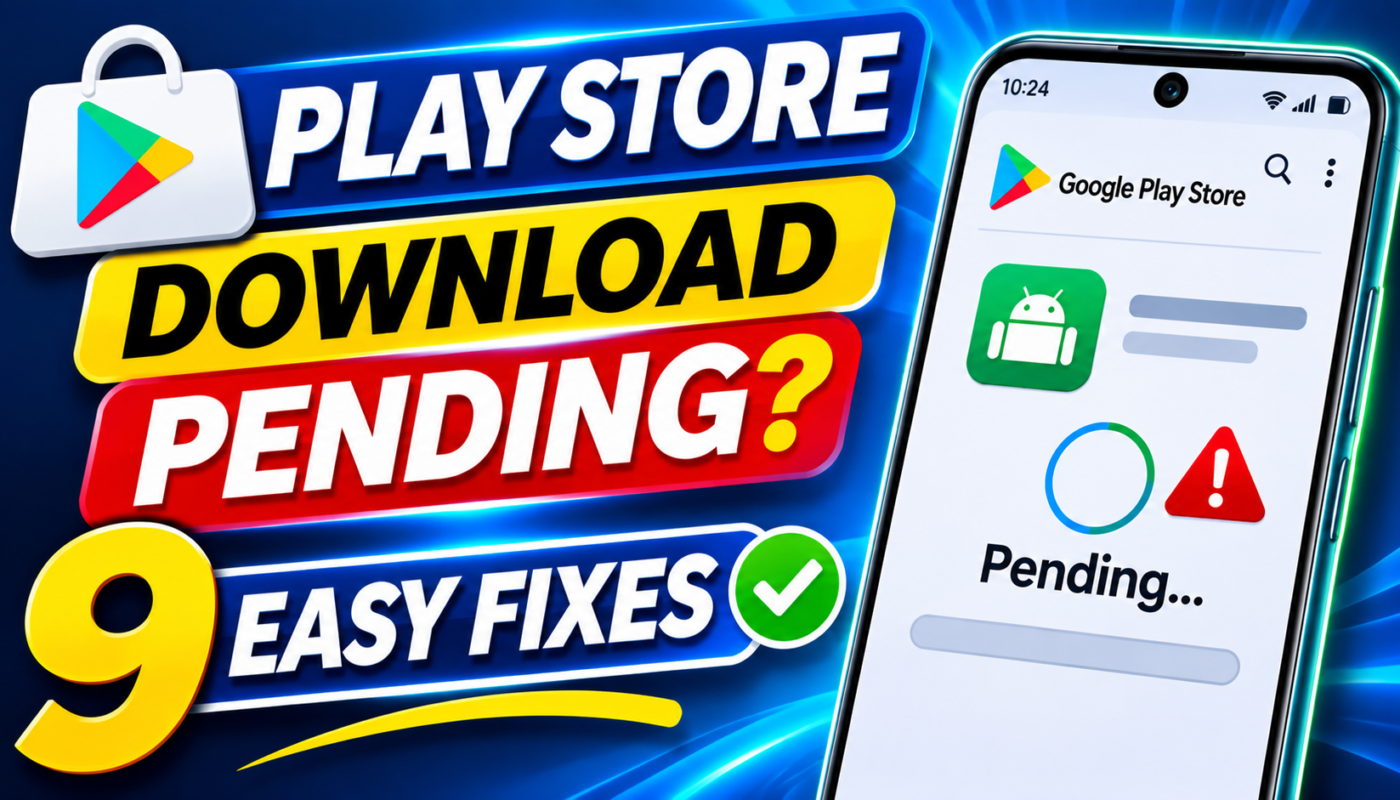
Play Store Download Pending is a frustrating problem that prevents Android users from downloading or updating applications. You open the Google Play Store, tap Install, and wait for the download to begin. Instead, the screen continues displaying “Pending” or “Waiting for download.”
Sometimes, an app download remains stuck for several minutes. In other cases, multiple applications fail to update, even when your smartphone appears to have a working internet connection.
Fortunately, this issue can often be resolved without resetting your smartphone or deleting personal data.
In this guide, you will learn nine practical troubleshooting methods to fix Google Play Store download problems on Android phones and tablets.
Why Is Google Play Store Download Pending?
The Google Play Store depends on several services to download, verify, and install applications.
If any required component is not functioning correctly, downloads may become delayed or fail.
Common causes include:
- Unstable Wi-Fi or mobile data
- Insufficient device storage
- Temporary Play Store application problems
- Incorrect date and time settings
- Outdated Android software
- Problems with Google Play Store updates
- Corrupted Play Store cache
- Multiple pending application updates
- Google account or device compatibility restrictions
Before trying advanced solutions, check whether the problem affects one application or every application.
If only one app fails, it may be unavailable for your device or affected by an app-specific problem.
Play Store Download Pending: Quick Troubleshooting Table
| Problem | Possible Cause | Suggested Fix |
|---|---|---|
| Download stuck at Pending | Temporary download issue | Restart Play Store |
| Download fails on mobile data | Weak connection or network restriction | Test Wi-Fi |
| Apps cannot install | Insufficient storage | Free storage space |
| Multiple downloads fail | Play Store cache issue | Clear Play Store cache |
| Downloads fail after changes | Incorrect system time | Enable automatic date and time |
| App updates fail | Outdated software or Store | Check updates |
1. Check Your Internet Connection
A weak or unstable internet connection can prevent Google Play Store downloads from starting.
First, open Chrome or another browser and visit a trusted website.
If websites load slowly or fail to open, investigate your network connection.
Steps
- Open Settings.
- Select Network & Internet or Connections.
- Check whether Wi-Fi or mobile data is enabled.
- Disconnect and reconnect to your network.
- Try opening a website.
- Return to the Play Store and retry the download.
If Wi-Fi is unstable, test a reliable alternative connection when available.
Google recommends checking network connectivity as one of the first steps in its official Play Store download troubleshooting guide.
2. Fix Play Store Download Pending by Restarting Your Phone
Temporary Android system problems may interrupt application downloads.
Restarting your smartphone can refresh network connections and background services.
Steps
- Save your work.
- Open your phone’s power menu.
- Select Restart.
- Wait for Android to start.
- Open the Google Play Store.
- Retry downloading the application.
The method for opening the power menu varies by manufacturer.
A normal restart does not erase your personal files, installed apps, or photographs.
3. Check Available Storage Space
The Google Play Store requires sufficient free storage to download and install applications.
If your phone is nearly full, downloads may stop or fail.
How to check Android storage
- Open Settings.
- Select Storage.
- Review the available space.
- Remove unnecessary downloads or applications.
- Retry the installation.
Google notes that having less than approximately 1 GB of free storage can prevent applications from downloading or installing.
Consider moving important photographs and documents to a trusted backup location before deleting local copies.
If you frequently work with scanned documents, our Root Image to PDF Tools can help organize images into PDF files. However, converting images to PDFs does not automatically free device storage.
4. Fix Play Store Download Pending by Clearing Cache
The Play Store stores temporary information to help its services function efficiently.
Occasionally, this cached data can become outdated or cause application problems.
Clearing the Play Store cache is one of Google’s recommended advanced troubleshooting methods.
Steps
- Find the Google Play Store icon.
- Touch and hold the icon.
- Select App info.
- Open Storage & cache.
- Tap Clear cache.
- Reopen the Play Store.
- Retry the download.
If clearing the cache does not help, you may consider Clear storage or Clear data.
Important: Clearing Play Store storage can reset settings such as parental controls and purchase authentication preferences. Review and restore these settings afterward.
Google provides detailed instructions in its official Play Store troubleshooting documentation.
5. Check Automatic Date and Time Settings
Incorrect date and time settings can interfere with services that rely on secure connections.
Google recommends verifying automatic date and time settings when Play Store downloads fail.
Steps
- Open Settings.
- Select System or General Management.
- Open Date & time.
- Enable Set time automatically.
- Enable automatic time zone if available.
- Wait a few minutes.
- Restart your phone if necessary.
The exact menu names may differ across Android devices.
After correcting the settings, open the Play Store and check whether the download begins.
6. Fix Play Store Download Pending by Reviewing Other Downloads
Sometimes the Play Store is already downloading or updating several applications.
Checking the current download queue can help you identify whether another installation is waiting or stalled.
Steps
- Open Google Play Store.
- Tap your profile picture.
- Select Manage apps & device.
- Review pending updates and downloads.
- Allow important updates to finish.
- Cancel an unnecessary stalled download if the option is available.
- Retry the affected application.
Do not interrupt important updates without a reason.
If downloads remain stuck, continue with the next troubleshooting method.
7. Update Android System Software
Outdated Android software can sometimes cause compatibility or installation problems.
Google recommends checking for system updates when Play Store downloads fail.
How to update Android
- Open Settings.
- Select System or Software Update.
- Tap System Update or Check for Updates.
- Install available official updates.
- Restart your device if requested.
- Test the Play Store again.
Before updating, make sure your phone has sufficient battery power and a stable internet connection.
If your Android phone has charging problems, see our related guide on Android phone charging troubleshooting.
8. Fix Play Store Download Pending by Updating Google Play Store
Google Play Store receives updates independently of some Android system updates.
If the Store itself is malfunctioning, checking for an available Play Store update may help.
Steps
- Open Google Play Store.
- Tap your profile picture.
- Select Settings.
- Open About.
- Find Play Store version.
- Tap Update Play Store.
- Follow any displayed instructions.
If the Play Store still fails, Google also documents how to uninstall and reinstall Play Store updates.
However, this is a more advanced step and should generally be attempted only after simpler solutions fail.
Refer to Google’s official instructions for fixing the Play Store app.
9. Check Google Account and App Compatibility
If the problem affects only one application, the issue may not be a general Play Store failure.
The app may require a newer Android version, specific hardware, or availability in your country.
What to check
- Open the affected app’s Play Store listing.
- Review any compatibility or availability messages.
- Confirm that you are using the intended Google account.
- Check whether parental controls or organizational restrictions apply.
- Contact the app developer if necessary.
If all downloads fail and the previous methods have not helped, consult Google’s advanced troubleshooting guidance.
Important: Removing and re-adding a Google account can remove some locally stored account-related information and require you to sign in again. Back up important data and verify your recovery options before attempting that step.
Do not download unfamiliar APK files from untrusted websites as a workaround.
What If Google Play Store Is Still Not Downloading Apps?
If the issue continues, determine whether it affects a single app or multiple apps.
For a single app, review compatibility, regional availability, and developer support.
For multiple apps, revisit storage, internet connectivity, Play Store cache, and system updates.
You can also consult Google’s advanced troubleshooting guide for multiple app downloads.
Avoid performing a factory reset unless recommended as a last resort and you have safely backed up your data.
How to Prevent Play Store Download Problems
These habits can help reduce recurring download issues:
- Maintain sufficient free storage.
- Keep Android updated.
- Use a stable internet connection.
- Install applications from trusted sources.
- Review pending updates regularly.
- Keep automatic date and time enabled.
- Avoid unnecessary changes to system services.
- Restart your device when temporary problems occur.
Frequently Asked Questions
1. Why does Google Play Store say Download Pending?
The message can appear when an application is waiting to download. Network problems, low storage, Play Store errors, or other pending downloads may contribute to delays.
2. How do I fix Play Store Download Pending quickly?
Start by checking your internet connection, restarting the Play Store, and confirming that your phone has enough free storage.
3. Does clearing Play Store cache delete installed apps?
No. Clearing the Play Store cache does not normally uninstall applications already installed on your phone.
4. Why are my apps not downloading even with Wi-Fi?
Your Wi-Fi connection may be unstable, your device may have insufficient storage, or the Play Store may be experiencing a temporary problem.
5. Can incorrect date and time stop Play Store downloads?
Yes. Incorrect system time can interfere with secure connections and other online services.
6. Why does Play Store download pending happen on Samsung phones?
Samsung phones can experience the same general Play Store problems as other Android devices, including network issues, storage limitations, and application errors.
7. Can Android updates fix Play Store download problems?
Yes. Official updates may resolve software bugs and compatibility issues.
8. Should I clear Google Play services data?
Not as an initial troubleshooting step. Clearing Google Play services data can affect saved information, payment methods, and account authentication. Follow Google’s instructions carefully.
9. Why can I download some apps but not others?
Certain applications may be incompatible with your device, unavailable in your region, or restricted by account settings.
10. Is a factory reset necessary to fix Play Store downloads?
Usually not. A factory reset should be considered only after less disruptive troubleshooting fails and important data has been backed up.
Conclusion
The Play Store Download Pending problem can prevent Android users from installing important applications and receiving updates.
Fortunately, many download problems can be investigated through simple checks such as verifying internet connectivity, freeing storage, restarting the device, and clearing Play Store cache.
If these methods fail, review date and time settings, software updates, Play Store updates, and application compatibility.
Always prioritize official troubleshooting instructions and avoid unsafe download workarounds.
By following these nine methods, you can identify common causes of stuck Google Play Store downloads and improve your chances of restoring normal app installation.