 by
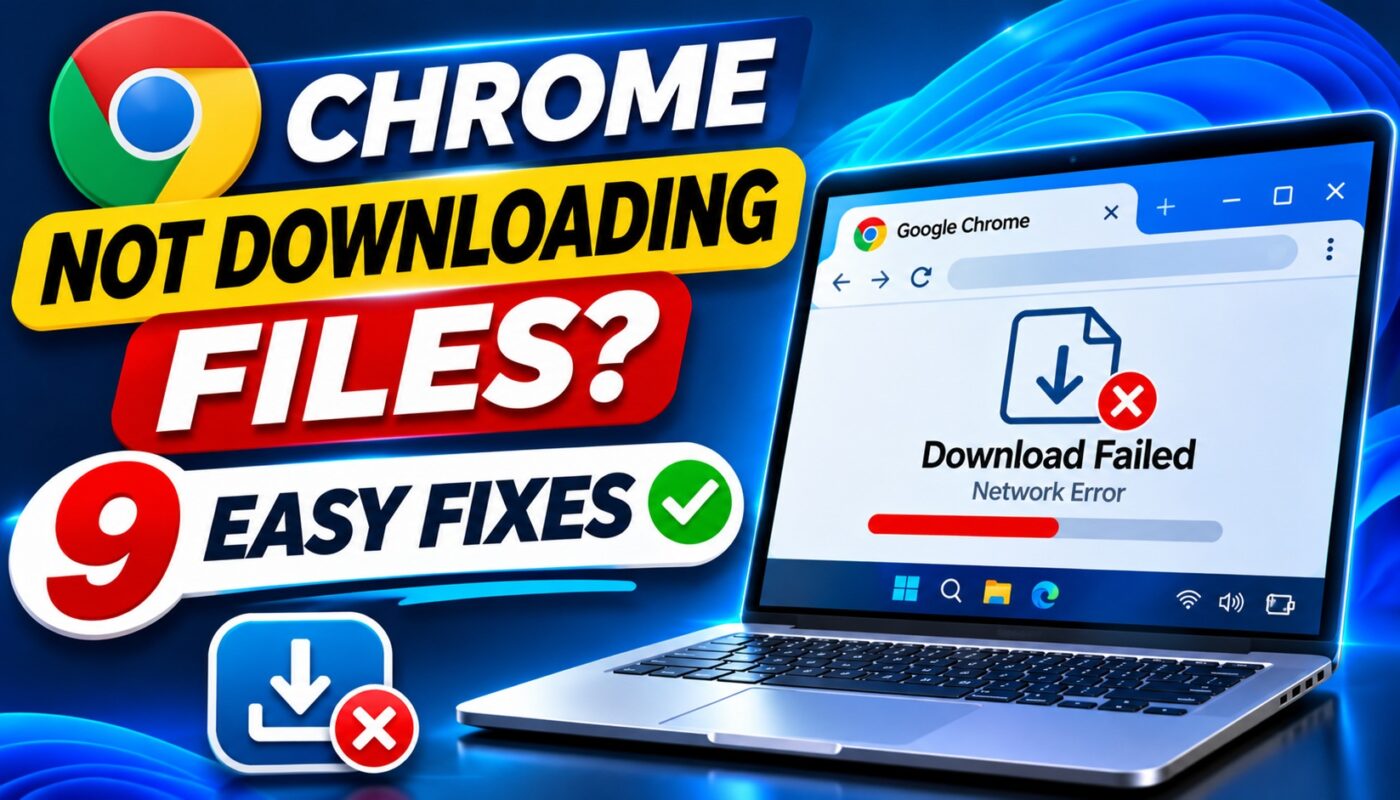
Chrome Not Downloading Files is a common browser problem that can interrupt work, studies, and everyday internet activities. You click a download button, but nothing happens. Sometimes the download starts and suddenly stops with an error such as “Failed – Network Error,” “Download Blocked,” or “Insufficient Permissions.”
Whether you are downloading a PDF, image, document, or software installer, this problem can be frustrating. Fortunately, many Google Chrome download errors can be resolved with simple troubleshooting steps.
In this guide, we explain nine practical solutions for fixing download problems in Chrome on Windows, Mac, and other supported devices.
Why Is Chrome Not Downloading Files?
Several issues can prevent Google Chrome from downloading files successfully.
Common causes include:
- An unstable internet connection
- Insufficient storage space
- Incorrect download folder permissions
- Security software blocking suspicious files
- Browser extensions interfering with downloads
- Outdated browser software
- Corrupted cached browser data
- Problems with the website hosting the file
- Restrictions imposed by an organization or administrator
Before changing browser settings, identify the exact error message. It can help you choose the correct solution.
1. Check Your Internet Connection
An unstable connection can interrupt a download before it finishes.
First, open a few trusted websites to see whether your internet connection is working normally.
If pages load slowly or fail completely, restart your router and reconnect your device.
You can also pause other large downloads temporarily.
If your computer shows a Wi-Fi connection but cannot access the internet, see our related troubleshooting guide: DNS Server Not Responding? 9 Ways to Fix It on Windows 11.
Google also recommends checking internet connectivity when diagnosing Chrome download failures.
2. Fix Chrome Not Downloading Files by Restarting the Browser
Sometimes a temporary browser problem can prevent downloads.
Close Chrome completely, reopen it, and try downloading the file again.
You can also open the Downloads page by entering:
chrome://downloads
If a failed download offers a Resume option, try resuming it.
If the download repeatedly fails, restart your computer and test again.
3. Check Available Storage Space
Chrome cannot save a file if your device does not have enough free storage.
This may produce a “Disk Full” error.
How to check storage on Windows 11
- Open Settings.
- Select System.
- Click Storage.
- Review the available space.
- Remove unnecessary files if needed.
On macOS, open System Settings and review the Storage section.
Avoid deleting unfamiliar system files. Start with unnecessary downloads, temporary files, or files you have already backed up.
After freeing enough space, retry the download.
4. Change the Chrome Download Location
Chrome may fail to download files if its destination folder is unavailable or you do not have permission to write there.
Steps
- Open Google Chrome.
- Click the three-dot menu.
- Select Settings.
- Open Downloads.
- Find the Location option.
- Click Change.
- Select an accessible folder.
- Try downloading the file again.
For example, you can select a folder inside your Documents directory.
Avoid using restricted system folders or locations that require administrator permission.
Google’s official guide to downloading files explains how Chrome handles download locations.
5. Fix Chrome Not Downloading Files by Checking Extensions
Some browser extensions can interfere with downloads.
Download managers, privacy tools, or security extensions may affect how Chrome handles certain websites.
How to test extensions
- Open Chrome.
- Enter
chrome://extensions. - Review your installed extensions.
- Temporarily disable a recently installed extension.
- Retry the download.
- Re-enable extensions individually to identify the cause.
Do not remove essential workplace or school-managed extensions without permission.
If disabling an extension resolves the problem, check whether an update is available or contact its developer.
6. Clear Chrome Cache and Browsing Data
Chrome stores cached website files to improve loading speed.
Occasionally, outdated browser data can contribute to website problems.
Steps
- Open Chrome.
- Click the three-dot menu.
- Select Delete browsing data.
- Choose a suitable time range.
- Select Cached images and files.
- Click Delete data.
- Restart Chrome and retry the download.
You can also clear site-specific data if only one website is affected.
Important: Clearing cookies can sign you out of websites. Avoid selecting passwords or other saved information unless you specifically intend to delete them.
Google explains the available options in its official Chrome browsing data guide.
7. Check Whether Chrome Blocked the Download
Google Chrome includes security protections that identify potentially dangerous files.
A download may be blocked if Chrome detects malware, deceptive software, suspicious content, or an insecure download source.
What should you do?
- Open Chrome Downloads.
- Read the warning carefully.
- Confirm whether the file comes from a trusted official website.
- Avoid downloading suspicious executables or unknown attachments.
- Contact the website owner if a legitimate file appears to be blocked incorrectly.
Security warning: Do not disable Safe Browsing or antivirus protection simply to force a download.
Google’s Chrome download security guidance explains why certain files are blocked.
8. Update Google Chrome
An outdated browser may contain bugs that affect website compatibility or download behavior.
How to update Chrome
- Open Chrome.
- Click the three-dot menu.
- Select Help.
- Click About Google Chrome.
- Allow Chrome to check for available updates.
- Relaunch the browser if requested.
After updating, test the download again.
Keep your operating system updated as well, since browser downloads also depend on device-level networking and file permissions.
9. Fix Chrome Not Downloading Files by Checking Website Permissions
Sometimes the problem is not Chrome itself.
A website may require you to sign in, authorize a download, or use a valid link.
For example, a private document may return a “Forbidden” error when your account lacks permission.
Steps
- Return to the website hosting the file.
- Confirm that you are signed in to the correct account.
- Check whether the download link is still valid.
- Try the download again.
- Contact the website owner if the file is unavailable.
If the problem occurs only on one website, the issue may be related to that website rather than your browser.
You can compare the result using another updated browser, but do not bypass security restrictions.
Common Chrome Download Errors Explained
| Error | Possible Cause | Recommended Action |
|---|---|---|
| Failed – Network Error | Interrupted connection | Check internet stability |
| Disk Full | Insufficient storage | Free storage space |
| Insufficient Permissions | Restricted destination folder | Change download location |
| Download Blocked | Browser or system security | Review security warning |
| Forbidden | Server access restriction | Check account permissions |
| File Missing | Removed or unavailable file | Contact website owner |
| Virus Detected | Security software detected a threat | Do not bypass the warning |
For a complete explanation of these messages, read Google’s official file download troubleshooting guide.
Chrome Not Downloading Files on Android
If Chrome downloads fail on Android, try these additional checks:
- Confirm that your internet connection is stable.
- Check available device storage.
- Restart Chrome and your phone.
- Update Chrome through Google Play.
- Review the Downloads app or file manager.
- Check whether the website requires account authorization.
The Android interface may vary depending on your device and Chrome version.
Avoid installing unknown APK files merely to solve a browser download problem.
How to Prevent Chrome Download Problems
Good browser maintenance can reduce recurring issues.
- Keep Chrome updated.
- Maintain sufficient free storage.
- Download software from official websites.
- Remove unnecessary browser extensions.
- Avoid suspicious download links.
- Keep security protections enabled.
- Check file permissions before downloading.
- Use a reliable internet connection.
Frequently Asked Questions
1. Why is Chrome not downloading files?
Chrome may fail to download files because of internet problems, insufficient storage, restricted folder permissions, security warnings, extensions, or website errors.
2. How do I fix failed downloads in Chrome?
Start by checking your internet connection, restarting Chrome, reviewing the Downloads page, and checking the download destination folder.
3. Why does Chrome say Download Blocked?
Chrome may block files that appear dangerous, suspicious, or insecure. Review the warning rather than disabling browser security.
4. Can low storage prevent Chrome downloads?
Yes. If your device lacks sufficient storage, Chrome may show a Disk Full error or fail to save the file.
5. Why does Chrome download work on one website but not another?
The affected website may have an expired link, server problem, account restriction, or unavailable file.
6. Does clearing Chrome cache delete downloaded files?
No. Clearing cached images and files does not normally remove files already saved to your device.
7. Can extensions stop Chrome downloads?
Some extensions may interfere with download behavior. Temporarily disabling nonessential extensions can help identify the cause.
8. Should I disable antivirus software to download a file?
No. Review the security warning and verify the source instead of disabling protection.
Conclusion
The Chrome Not Downloading Files problem can affect anyone, whether they use Chrome for work, education, or personal browsing.
Fortunately, most common download errors can be investigated without advanced technical knowledge.
Start with your internet connection, available storage, and download folder. Then check browser extensions, cached data, updates, and website permissions.
Always treat security warnings seriously and avoid downloading files from untrusted sources.
By following these nine troubleshooting methods, you can identify the cause of the problem and improve your chances of downloading files successfully.