
 by
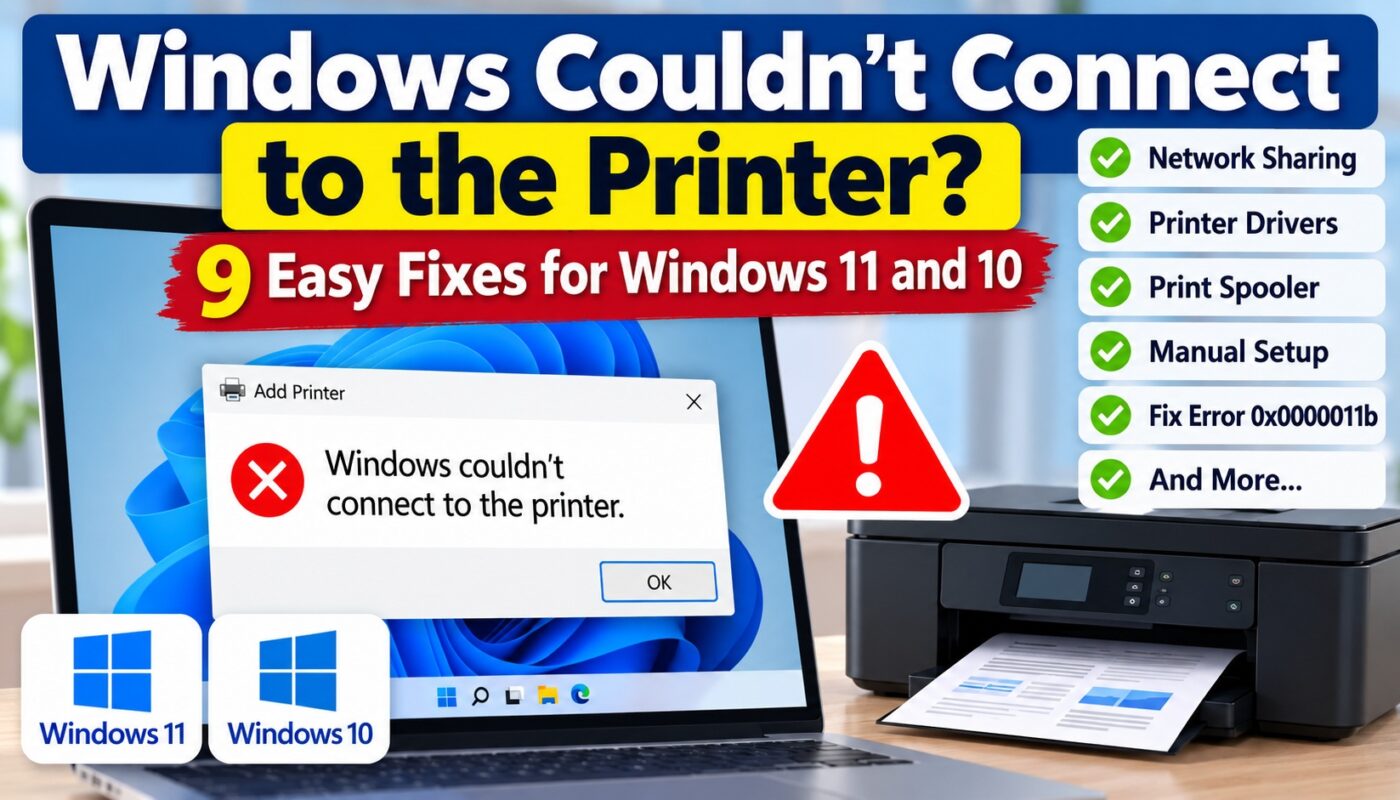
by Are you getting the “Windows couldn’t connect to the printer” error while trying to add a printer to your computer? This problem commonly occurs when connecting to a shared printer in an office, school, or home network.
Sometimes, Windows detects the printer but fails to complete the connection. In other cases, an error code appears during installation.
Fortunately, you can troubleshoot many printer connection problems without replacing your printer. This guide explains nine practical solutions for Windows 11 and Windows 10 users.
Why Does Windows Couldn’t Connect to the Printer Error Occur?
The error can appear for several reasons, including:
- Incorrect printer-sharing settings
- Network discovery being disabled
- Computers connected to different networks
- Missing or incompatible printer drivers
- Print Spooler service problems
- Incorrect shared printer names
- Windows security or permission restrictions
Before making advanced changes, identify whether your printer is connected directly through USB, connected to Wi-Fi, or shared from another computer.
1. Restart Your Printer and Computer
First, restart the devices involved in the printer connection.
- Turn off the printer.
- Shut down your computer.
- Disconnect the printer from power for about 30 seconds.
- Reconnect the power and turn on the printer.
- Start your computer and try connecting again.
If the printer is shared through another computer, restart that host computer when practical.
A restart can resolve temporary connection or service problems.
2. Check the Network Connection
A network connection problem is one of the common reasons Windows cannot connect to a shared printer.
Make sure the computer and printer are connected to the correct network.
If the printer is shared from another PC, both computers should be connected to the same local network.
For Wi-Fi printers, check the printer’s wireless connection and network status.
Tip: If you are using a USB printer, try a different USB port or cable before changing network settings.
3. Enable Network Discovery and Printer Sharing
If Windows couldn’t connect to the printer on a local network, check the sharing settings.
On Windows 11:
- Open Settings.
- Select Network & internet.
- Open Advanced network settings.
- Select Advanced sharing settings.
- Under Private networks, enable Network discovery.
- Enable File and printer sharing.
Use these settings only on a trusted private network, not on public Wi-Fi.
Afterward, try connecting to the printer again.
4. Check Printer Sharing on the Host Computer
When a printer is connected to one computer and shared with others, the host computer must have printer sharing enabled.
On the host PC:
- Open Settings → Bluetooth & devices → Printers & scanners.
- Select the printer.
- Open Printer properties.
- Select the Sharing tab.
- Enable Share this printer.
- Note the printer’s share name.
- Click Apply and OK.
Also, make sure the host computer is turned on and accessible over the network.
5. Add the Shared Printer Manually
Sometimes, Windows cannot automatically discover a shared printer even when the printer is working correctly.
In this situation, you can try adding it manually.
- Open Settings → Bluetooth & devices → Printers & scanners.
- Click Add device.
- Select the option to add a printer manually.
- Choose Select a shared printer by name.
- Enter the shared printer’s network path.
For example:
\\OfficePC\HPPrinter
Replace OfficePC with the actual host computer name and HPPrinter with the printer’s share name.
Then follow the installation instructions.
If prompted, enter the correct credentials for the host computer.
6. Restart the Print Spooler Service
The Print Spooler manages printing tasks in Windows. If this service stops or becomes unresponsive, printer installation and printing may fail.
To restart it:
- Press Windows + R.
- Type
services.msc. - Press Enter.
- Find Print Spooler.
- Right-click it and select Restart.
If the service is stopped, select Start instead.
Once the service is running, try connecting to the printer again.
7. Update or Reinstall the Printer Driver
An incompatible or outdated printer driver can prevent Windows from connecting to a printer.
First, check Windows Update for available driver updates.
If necessary, visit the official support website of your printer manufacturer, such as HP, Canon, Epson, or Brother.
Download a driver that matches your exact printer model and Windows version.
Avoid downloading printer drivers from unknown third-party websites.
After installing the driver, restart your computer and test the connection.
8. Windows Couldn’t Connect to the Printer: Fix Error 0x0000011b
Some users encounter error 0x0000011b while connecting to a shared network printer.
This error may involve Windows printer-sharing security or authentication settings.
Before attempting advanced changes:
- Install available Windows updates on both computers.
- Check that the printer is correctly shared.
- Confirm that the host computer is accessible.
- Verify that you are using the correct network credentials.
- Try reconnecting the printer manually.
If the error continues, consult Microsoft Support or your organization’s IT administrator.
Important: Avoid random registry modifications or disabling printer security protections from untrusted tutorials. Such changes can expose your computer or network to security risks.
9. Remove and Reconnect the Printer
If the previous solutions do not work, remove the existing printer connection and add it again.
- Open Settings → Bluetooth & devices → Printers & scanners.
- Select the affected printer.
- Click Remove.
- Restart your computer.
- Return to Printers & scanners.
- Select Add device or add the shared printer manually.
Finally, print a test page to confirm the connection is working.
Windows Couldn’t Connect to the Printer After a Windows Update
If the problem started after a Windows update, check whether the printer driver and sharing configuration are still working correctly.
Start by restarting both computers and checking for additional Windows or driver updates.
Next, confirm that the printer is still shared and accessible.
If you use a printer in an office network, ask the administrator to check printer permissions and compatibility before changing security settings.
Additional Printer Troubleshooting Guides
Sometimes, a printer connection error is related to another Windows printing problem.
If your computer cannot detect the printer, read our guide on Printer Not Found Windows 11.
If the printer is detected but shows an offline status, follow our Printer Offline Windows 11 troubleshooting guide.
You can also refer to the official Microsoft guide for shared printer connection problems.
Frequently Asked Questions
Why does Windows say it couldn’t connect to the printer?
This error can occur because of network connectivity problems, disabled printer sharing, driver incompatibility, incorrect permissions, or Print Spooler issues.
How do I connect to a shared printer in Windows 11?
Open Settings → Bluetooth & devices → Printers & scanners, select Add device, and choose the manual installation option if the printer is not found. Enter the shared printer’s network path when requested.
Can restarting Print Spooler fix printer connection problems?
Yes, restarting Print Spooler can resolve some temporary printing service problems. However, it will not fix every network or driver issue.
What does printer error 0x0000011b mean?
Error 0x0000011b is associated with certain shared printer connection failures. The exact cause depends on the Windows configuration, security settings, and printer environment.
Can I fix a printer connection problem without reinstalling Windows?
Yes. Most common connection problems should be investigated through network settings, printer sharing, drivers, and printing services before considering major system changes.
Conclusion
The Windows couldn’t connect to the printer error can be frustrating, especially when you need to print an important document.
However, many connection problems can be resolved by checking network access, enabling printer sharing, restarting Print Spooler, updating drivers, or reconnecting the printer manually.
Start with the simplest solutions and move to advanced troubleshooting only when necessary. For persistent shared printer errors, follow official Microsoft guidance or contact your network administrator.